
Search for the Solution?
How to Install WordPress In cPanel Using Softaculous
How to Install WordPress in cPanel Using Softaculous (Complete Step-by-Step Guide 2026)
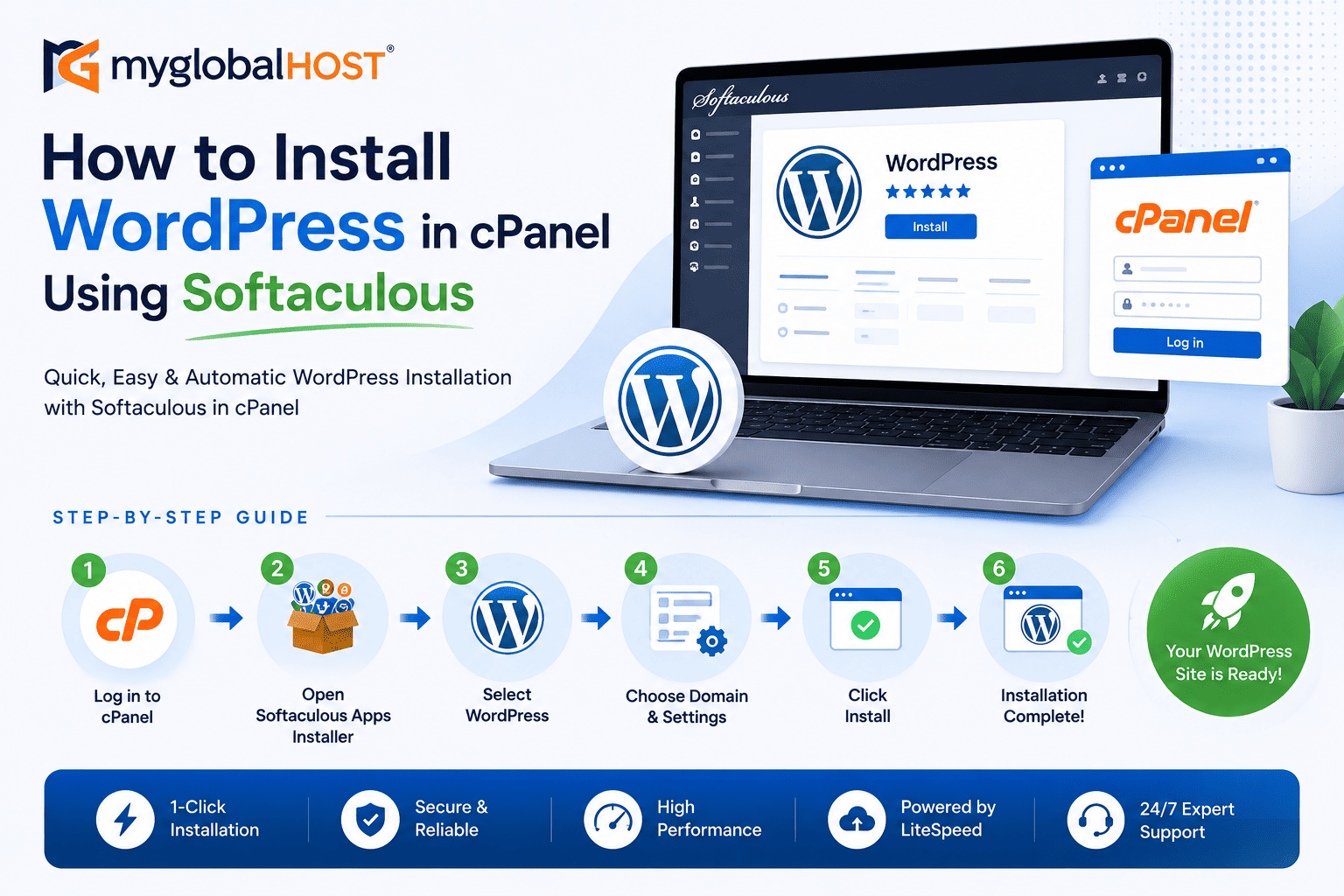
Why This Guide Exists — And Why the Old One Was Not Enough
This updated step by step guide covers the full journey — from logging into cPanel through to a correctly configured, secure, fast, and SEO-ready WordPress installation on myglobalHOST’s LiteSpeed infrastructure. Every step is explained, every important setting is flagged, and every post-installation action is clearly listed so nothing is left to chance.
What is Softaculous and Why Use It?
Softaculous is an auto-installer — a tool built into cPanel that automates the process of installing web applications. Instead of manually downloading WordPress, creating a MySQL database, uploading files via FTP, editing configuration files, and running an installer, Softaculous does all of that in under 60 seconds from a single form.
Softaculous currently hosts over 400 applications in its library — WordPress, Joomla, Drupal, Magento, PrestaShop, and hundreds more. For WordPress specifically, Softaculous installs the latest stable release, creates a dedicated MySQL database and user, configures wp-config.php, sets up your admin account, and places all files in the correct directory — all automatically.
Every myglobalHOST hosting plan includes Softaculous in cPanel at no extra cost. This is the fastest, most reliable way to install WordPress for the vast majority of users.
Before You Begin: Prerequisites Checklist
Before starting the installation, confirm the following:
1. Your hosting account is active Log in to your Client Dashboard and confirm your hosting plan is active. If you haven’t purchased a plan yet, see How to Purchase a Shared Hosting Plan or How to Buy and Customise a Hosting Plan.
2. Your domain’s DNS is pointing to myglobalHOST nameservers WordPress cannot be accessed at your domain until DNS is correctly configured. See Where to Find myglobalHOST Nameservers for the correct nameserver values to set with your domain registrar. DNS propagation typically takes 15 minutes to 4 hours; use our DNS Checker to confirm propagation is complete before proceeding.
3. SSL is installed on your domain You should install WordPress on HTTPS, not HTTP. An SSL certificate should be active before installation so WordPress can be configured with the correct HTTPS URL from the start — avoiding URL inconsistencies and redirect issues later. See How to Install and Activate SSL in cPanel Hosting to set up your free SSL certificate if you haven’t already.
4. You know which domain or subdomain you are installing on If you are installing WordPress on an addon domain (a secondary domain on your account), that domain must already be added to cPanel. See How to Add a New Domain in cPanel Hosting (Addon Domain). If you are installing on a subdomain, see How to Create a Subdomain in cPanel Hosting.
Part 1: Accessing cPanel
Step 1 — Log In to cPanel
There are two ways to access cPanel on your myglobalHOST account:
Method A — Via Client Dashboard (Recommended): Log in at members.myglobalhost.in → Services → click your hosting plan → click Log in to cPanel. This method uses a direct login token — no username and password required.
Method B — Direct URL: Go to https://yourdomain.com/cpanel or https://yourdomain.com:2083 and enter your cPanel username and password.
For a detailed walkthrough, see How to Login to cPanel at myglobalHOST.
Part 2: Finding Softaculous in cPanel
Step 2 — Locate the Softaculous Apps Installer
Once inside cPanel, scroll down to the Software section. You will see Softaculous Apps Installer — click it.
Alternatively, use cPanel’s search bar at the top right of the dashboard. Type “Softaculous” and it will appear immediately.
When Softaculous opens, you will see its application library. WordPress is typically featured prominently on the home screen. You can also find it by:
- Clicking WordPress directly from the Softaculous home screen featured section
- Going to Blogs in the left sidebar → clicking WordPress
- Searching “WordPress” in Softaculous’s own search bar
Step 3 — Click “Install Now”
On the WordPress application page within Softaculous, you will see details about the application — version number, ratings, disk space requirement, and a description. Click the blue Install Now button to proceed to the installation form.
Part 3: Completing the Installation Form
This is the most important part of the process. Each field in the Softaculous WordPress installation form has real consequences for your site’s functionality, security, and SEO. Do not rush through this screen.
Section A — Software Setup
Choose Protocol This dropdown sets the URL format of your WordPress installation. You will see four options:
http://http://www.https://https://www.
Always select https://www. — assuming your SSL certificate is active (which it should be from the prerequisite step). Installing on HTTPS from the start avoids redirect complications later. The www. prefix ensures consistent URL canonicalisation. If you later want to force non-www, you can configure that via Force WWW in Your .htaccess File in cPanel.
If your SSL certificate is not yet active when you reach this step, install on
https://anyway and activate SSL immediately after. Do not install onhttp://and plan to migrate to HTTPS later — this requires updating every URL in your database and is error-prone.
Choose Domain Select the domain where you want WordPress installed from the dropdown. This will list:
- Your primary cPanel domain
- Any addon domains added to your account
- Any subdomains created on your account
If the domain you want is not listed, it has not yet been added to cPanel. Exit and add it first using the guides above.
In Directory This field sets the subdirectory within your domain where WordPress will be installed.
- Leave this field completely empty if you want WordPress to be the primary site at
https://www.yourdomain.com/ - Type a folder name (e.g.,
blog) if you want WordPress athttps://www.yourdomain.com/blog/
Critical: If you leave a trailing slash or enter any value when you intend a root installation, WordPress will be installed in a subdirectory and your homepage URL will include that path. This is a very common beginner mistake. Double-check this field before proceeding.
Section B — Site Settings
Site Name Enter the name of your website. This appears in the browser tab, the WordPress admin header, and in search results if not overridden by an SEO plugin. You can change this later in WordPress → Settings → General, but set something accurate now.
Site Description A short tagline for your site. Also changeable later. Keep it brief and relevant to your site’s purpose.
Enable Multisite (WPMU) Leave this unchecked unless you specifically know you need WordPress Multisite (a network of multiple WordPress sites under one installation). For standard single-site installations, this should always be off.
Section C — Admin Account (Read Every Word Here)
This is the most security-critical section of the installation form. The credentials you set here are your WordPress admin login.
Admin Username Do not use admin. This is the single most targeted WordPress username by brute-force bots worldwide. Every automated attack script tries admin first. Choose something completely different — your name, a business abbreviation, anything that is not admin.
Admin Password Use a strong, unique password of at least 16 characters — a mix of upper and lowercase letters, numbers, and symbols. Do not reuse a password from any other account. Softaculous will generate a strong password for you if you click the key icon next to the field — use this.
Admin Email Enter a real, working email address you have access to. WordPress sends password reset links, security alerts, new user notifications, comment notifications, and plugin/theme update notices to this address. An incorrect email address here means you cannot recover your admin account if you forget your password.
After installation, the first thing you should do in WordPress is go to Users → Your Profile and verify all admin account details are correct.
Section D — Choose Language
Select English or your preferred language from the dropdown. WordPress is fully translated into dozens of languages — the language you select here determines the admin interface language and default site language. This can be changed after installation in WordPress → Settings → General → Site Language.
Section E — Select Plugin(s) (Important — Read Before Checking)
Softaculous offers optional plugins to install alongside WordPress. Common options include:
Limit Login Attempts Reloaded — Highly recommended. Blocks brute-force login attacks by limiting failed login attempts. Activate this.
Classic Editor — Only install if you specifically want the older WordPress editor instead of the modern Gutenberg block editor. For new WordPress installations in 2026, leave this unchecked unless you have a specific reason.
Loginizer — Another login security plugin. If you are installing Limit Login Attempts, you do not need both.
Do not select multiple security plugins that duplicate each other’s function. One login protection plugin is sufficient.
Section F — Advanced Options (Do Not Skip This Section)
Click the Advanced Options toggle to expand this section. It is collapsed by default but contains settings that significantly affect your installation quality.
Database Name Softaculous auto-generates a database name like username_wp1. You can customise this — choose something descriptive that you will recognise if you ever need to manage your database directly via cPanel’s phpMyAdmin. For example: username_sitename or username_wp_main.
For database management guidance, see Repair and Optimise MySQL Database on cPanel/WHM Server.
Table Prefix The default is wp_. This is another well-known attack vector — SQL injection attacks often target the wp_ prefix specifically. Change this to something unique such as mgh_, site2026_, or any short alphanumeric prefix ending with an underscore. This is a simple, one-time security improvement.
Disable Update Notifications Email Leave this unchecked — you want to receive update notifications. Outdated WordPress core, plugin, and theme files are the leading cause of WordPress website compromises.
Auto Upgrade Set to your preference. For most users, enabling automatic WordPress core minor updates is reasonable. Major version upgrades should be reviewed manually before applying.
Auto Upgrade WordPress Plugins Use caution here. Auto-upgrading plugins without testing can break your site if a plugin update introduces a conflict. For production sites, leave this off and review plugin updates manually in your WordPress dashboard.
Auto Upgrade WordPress Themes Same caution as plugins. Leave off for production sites.
Backup Location Softaculous can create a backup of your WordPress installation before upgrades. Leave the default backup location selected. For manual backup procedures, see How to Take a Full Account Backup in cPanel Manually.
Step 4 — Select WordPress Version
At the bottom of the form, confirm the WordPress version to install. Softaculous always shows the latest stable release by default — this is what you should install. Never select an older version unless you have a specific compatibility requirement.
As of June 2026, WordPress 6.x is the current stable branch. Ensure you are installing the latest release within that branch.
Step 5 — Click Install
Once all fields are correctly filled, click the Install button at the bottom of the form. Softaculous will:
- Create a MySQL database and database user with the name you specified
- Download the latest WordPress package
- Extract and upload all WordPress files to your chosen directory
- Write your wp-config.php with the correct database credentials, table prefix, and authentication keys
- Run WordPress’s initial database setup
- Create your admin account with the username, password, and email you provided
- Display a success screen with your site URL and admin login URL
The entire process typically takes 20 to 45 seconds.
Part 4: Verifying the Installation
Step 6 — Confirm Your Site is Live
After Softaculous displays the success screen, click the link to your website URL. Your new WordPress site should load with the default theme (Twenty Twenty-Five or the current year’s default theme as of your installation date).
If the site does not load:
- Check that DNS is fully propagated using our DNS Checker
- Confirm the domain is correctly pointing to myglobalHOST nameservers — see Where to Find myglobalHOST Nameservers
- If you see a browser security warning (not private/certificate error), your SSL certificate may not yet be active — see How to Install and Activate SSL in cPanel Hosting
Step 7 — Log In to Your WordPress Admin
Go to https://www.yourdomain.com/wp-admin and log in with the admin username and password you set during installation.
You are now inside your WordPress dashboard. Before customising your site or adding content, complete the critical post-installation configuration steps below.
Part 5: Essential Post-Installation Configuration (Do This Before Anything Else)
This is the section that most WordPress guides skip entirely — and it is where the majority of new WordPress websites fail their first security audit or PageSpeed test within days of going live.
Step 8 — Set Your Permalink Structure
Go to Settings → Permalinks in your WordPress admin. The default setting is “Plain” — which creates URLs like yourdomain.com/?p=123. This is terrible for SEO.
Select Post name — which creates URLs like yourdomain.com/my-post-title/. This is the most SEO-friendly permalink structure and should be your default for virtually every WordPress site.
Click Save Changes. WordPress will automatically update your .htaccess file with the correct rewrite rules for the new permalink structure. On myglobalHOST’s LiteSpeed servers, .htaccess changes take effect immediately without any server restart.
If you ever see 404 errors after changing your permalink structure, see How to Fix Error 404 in WordPress Website.
Step 9 — Force HTTPS Across the Entire Site
Even though you installed on https://, WordPress may still generate some internal links using http:// depending on your theme and plugins. Force all traffic to HTTPS by adding rules to your .htaccess file.
See: Force HTTPS Using .htaccess
This ensures Googlebot, visitors, and every internal WordPress link uses the secure HTTPS version consistently — preventing duplicate content from HTTP/HTTPS variations and mixed-content browser warnings.
Step 10 — Set Up LiteSpeed Cache
This is the single most impactful performance action you can take after installing WordPress on myglobalHOST’s LiteSpeed infrastructure.
Go to Plugins → Add New → search for LiteSpeed Cache → Install and Activate.
LiteSpeed Cache is free, maintained by LiteSpeed Technologies, and integrates directly with myglobalHOST’s server-level LiteSpeed Engine. It provides full-page caching, browser caching, CSS and JS minification, image optimisation via QUIC.cloud, and native HTTP/3 delivery — without the plugin conflict risks documented in our guide on Does WP Rocket Hurt SEO?.
For the complete LiteSpeed Cache setup guide with all recommended settings, see: How to Set Up LiteSpeed Cache in cPanel for WordPress
Step 11 — Enable PHP OPcache
PHP OPcache caches compiled PHP bytecode in server memory, meaning PHP files do not need to be recompiled on every request. On myglobalHOST’s servers, OPcache can be enabled directly from cPanel without any technical knowledge.
See: How to Enable OPcache in cPanel
Enabling OPcache alongside LiteSpeed Cache gives you two complementary caching layers — one for full pages, one for PHP execution speed.
Step 12 — Delete Default WordPress Content
Freshly installed WordPress includes sample content that should be removed before you publish:
- Go to Posts → delete “Hello World!” post
- Go to Pages → delete “Sample Page” (or keep and edit it if you need an About or Contact page)
- Go to Comments → delete the sample comment
- Go to Plugins → deactivate and delete Hello Dolly (a decorative plugin with no practical purpose)
- Go to Plugins → review Akismet Anti-Spam — if you have a blog with comments enabled, activate it with a free API key. If your site has no comments, deactivate and delete it.
Step 13 — Configure Your Site’s Email (SMTP)
WordPress’s default email sending uses PHP’s mail() function, which is unreliable and frequently flagged as spam. Contact form submissions, password reset emails, and WooCommerce order notifications will often go to junk folders or fail to deliver entirely without a proper SMTP configuration.
Set up SMTP email delivery immediately after installation. See: WordPress SMTP Setup Guide
If you need to create professional email accounts on your domain first (e.g., hello@yourdomain.com), see: How to Create an Email Account in cPanel
Step 14 — Set a Correct Admin Email in WordPress Settings
Go to Settings → General and verify:
- Site Title matches what you want displayed
- Tagline is set correctly or left blank (not the default “Just another WordPress site”)
- WordPress Address (URL) and Site Address (URL) both show
https://www.yourdomain.com— with HTTPS and consistent www/non-www - Administration Email Address is a real, working email address
Click Save Changes.
Step 15 — Set the Correct Time Zone
Still in Settings → General, scroll to Timezone. Change this from “UTC+0” to your local timezone. For Indian website owners, select Asia/Kolkata (UTC+5:30). This ensures your scheduled posts, WooCommerce order times, and backup timestamps display in the correct local time.
Step 16 — Install an SEO Plugin
WordPress does not include built-in SEO management tools. Install a dedicated SEO plugin immediately after WordPress installation:
Rank Math SEO (recommended for myglobalHOST customers — it is the plugin we use across our own properties) — provides meta title/description management, schema markup, sitemap generation, and Search Console integration. Free version covers all essential features.
Yoast SEO — the most widely used WordPress SEO plugin globally, with a reliable free tier.
Do not install both — one SEO plugin is sufficient and two will conflict on schema generation and sitemap output.
Step 17 — Configure WordPress Reading Settings
Go to Settings → Reading:
- Your homepage displays: If you are building a standard website (not a pure blog), select A static page and choose or create a dedicated Homepage and Blog page
- Search engine visibility: Ensure the box “Discourage search engines from indexing this site” is unchecked. This checkbox is sometimes accidentally left on from development, blocking all Google indexing
Step 18 — Take Your First Backup
Before adding any more content, plugins, or customisation, take a baseline backup of your fresh WordPress installation. This gives you a clean restore point if anything goes wrong during setup.
See: How to Take a Full Account Backup in cPanel Manually
Part 6: Post-Installation Security Hardening
Step 19 — Change the WordPress Login URL (Optional but Recommended)
The default WordPress login page at /wp-admin and /wp-login.php is attacked by bots thousands of times per day on most websites. While the login protection plugin you installed via Softaculous helps, changing the login URL adds an additional layer of protection.
Plugins like WPS Hide Login allow you to set a custom login URL (e.g., /site-access-2026/) in under two minutes without editing any files.
Step 20 — Review File Permissions
Correct file permissions prevent unauthorised modification of your WordPress files. The standard permission structure for WordPress is:
- Directories: 755
- Files: 644
- wp-config.php: 444 (read-only — prevents web-accessible editing)
You can check and fix file permissions using cPanel’s File Manager. See cPanel File Manager vs FTP: 7 Incredible Reasons Why Beginners Win in 2026 for a guide to navigating File Manager effectively. Also see 5 Life-Saving Tricks for cPanel File Manager for power-user tips.
Step 21 — Set Up Cron Jobs for WordPress
WordPress uses WP-Cron to handle scheduled tasks — scheduled posts, automatic plugin updates, scheduled backups, and email queue processing. On shared hosting, WP-Cron runs only when a visitor loads your site, which is unreliable for low-traffic sites.
Set up a real system cron job in cPanel to trigger WP-Cron on a schedule. See: How to Set Up, Edit and Manage Cron Jobs in WordPress
Part 7: Installing WordPress on an Addon Domain or Subdomain
If you want to install WordPress on a secondary domain or subdomain within the same cPanel account, the process is identical — with one important difference at Step 2.
For an addon domain: When you reach the “Choose Domain” dropdown in the Softaculous form, select your addon domain from the list. Leave the “In Directory” field empty for a root installation on that domain. Softaculous will install WordPress in the document root of that addon domain automatically.
For a subdomain: Select the subdomain from the “Choose Domain” dropdown. Again, leave “In Directory” empty.
If your intended domain is not appearing in the dropdown, the domain or subdomain has not been correctly set up in cPanel yet. See:
- How to Add a New Domain in cPanel Hosting (Addon Domain)
- How to Create a Subdomain in cPanel Hosting
Part 8: Managing Existing WordPress Installations via Softaculous
Softaculous is not just for new installations — it is a full management tool for all WordPress installs on your account.
Access Softaculous → click the All Installations icon (house icon at the top of Softaculous). This shows every application installed on your account. For each WordPress installation you can:
- Upgrade — update to a newer WordPress version with one click
- Clone — duplicate an installation to another directory or domain (useful for staging)
- Backup — create a Softaculous-managed backup of the installation
- Restore — restore from a previous Softaculous backup
- Stage — create a staging environment to test changes before applying to production
- Remove — completely uninstall WordPress and its database
Creating a Staging Environment via Softaculous
For production websites, always test significant changes (theme updates, major plugin upgrades, custom development) on a staging site before applying to your live site.
Go to Softaculous → All Installations → find your live WordPress installation → click Stage. Softaculous creates a full copy of your WordPress site at a staging subdomain (e.g., staging.yourdomain.com). Make your changes on the staging site, verify everything works, then push changes back to production.
Part 9: Common Issues After WordPress Installation and How to Fix Them
White Screen of Death After Installation
Usually caused by a PHP memory limit being too low for WordPress to execute. Fix: See Fatal Error: Allowed Memory Size Error in WordPress (Increase WordPress Memory Limit) — increase the memory limit in wp-config.php or via cPanel’s PHP settings.
404 Errors on Posts and Pages
Caused by incorrect permalink rewrite rules or a missing/incorrect .htaccess file. Fix: Go to Settings → Permalinks → click Save Changes (no changes needed — this regenerates the .htaccess rewrite rules). See How to Fix Error 404 in WordPress Website for a complete fix guide.
Mixed Content Warnings (Padlock Broken in Browser)
Occurs when WordPress is installed on HTTPS but some resources (images, scripts, stylesheets) are loaded via HTTP. Fix: Install and activate the Really Simple SSL plugin to automatically convert all internal URLs to HTTPS, then see Force HTTPS Using .htaccess for the server-side rule.
WordPress Emails Not Sending
PHP mail() is blocked or unreliable on most shared hosting servers for spam prevention reasons. Fix: Configure SMTP immediately. See WordPress SMTP Setup Guide.
Error Establishing a Database Connection
WordPress cannot connect to its MySQL database. Usually caused by incorrect database credentials in wp-config.php, or the database server being temporarily unavailable. Fix: See How to Fix “Error Establishing a Database Connection” in WordPress for a step-by-step diagnosis guide.
503 Service Unavailable Error
Usually a server-level issue — WordPress process hitting memory or CPU limits, or a plugin causing PHP to crash. Fix: See How to Fix Error 503 Service Unavailable in WordPress.
WordPress Admin Login Not Working
If you cannot log in with your admin credentials, use the password reset option (Lost your password? link on the login page) — WordPress sends a reset link to your admin email. If that email is also inaccessible, database-level password reset via phpMyAdmin is required. Check How to Recover a Lost WordPress Admin Password for the complete process.
Too Many Redirects Error
Typically caused by conflicting HTTP → HTTPS redirect rules in WordPress settings and .htaccess simultaneously, or a misconfigured Cloudflare SSL mode. See Does Cloudflare Hurt SEO? for Cloudflare-specific SSL configuration guidance.
Part 10: What to Install and Configure Next
Once your WordPress installation is complete and all post-installation steps above are done, here is the recommended order of next steps:
1. Choose and install your theme Go to Appearance → Themes → Add New. For a fast, lightweight starting point, consider Astra, GeneratePress, Kadence, or Hello (Elementor’s starter theme). Avoid themes with excessive built-in features that duplicate what dedicated plugins do better.
2. Install essential plugins only Keep your plugin list minimal. Every plugin adds PHP execution overhead. Start with only what you actively need:
- SEO plugin (Rank Math or Yoast — one, not both)
- Security plugin (Wordfence or Solid Security)
- Caching plugin (LiteSpeed Cache — already done in Step 10)
- Contact form plugin (WPForms Lite or Contact Form 7)
- Backup plugin (UpdraftPlus or use Softaculous backups)
3. Configure your SEO plugin Set your meta title separator, homepage title and description, sitemap settings, and connect to Google Search Console. Submit your sitemap (yourdomain.com/sitemap_index.xml) to Google Search Console as soon as possible.
4. Set up your email accounts Create professional email addresses on your domain and configure them on your devices. See:
- How to Create an Email Account in cPanel
- How to Configure Webmail Email on Your Mobile Device
- How to Configure Webmail Email on Your PC/Laptop
5. Review your server infrastructure Understanding what powers your site helps you make better decisions about plugins, caching, and performance tools. Read:
- Apache vs LiteSpeed vs Nginx: Which Web Server is Fastest? — understand why myglobalHOST uses LiteSpeed
- What is NVMe SSD Hosting and Why is it Faster Than Regular SSD? — understand your storage infrastructure
- Does WP Rocket Hurt SEO? — why LiteSpeed Cache is the better choice over WP Rocket on myglobalHOST servers
Softaculous WordPress Installation: Complete Checklist
Use this checklist to confirm every step is complete:
Before Installation
- ✅ Hosting account is active
- ✅ Domain DNS points to myglobalHOST nameservers
- ✅ DNS propagation confirmed via DNS Checker
- ✅ SSL certificate active on domain
- ✅ Addon domain or subdomain added to cPanel (if applicable)
- ✅ Full account backup taken
Installation Form
- ✅ Protocol set to
https://www. - ✅ Correct domain selected
- ✅ “In Directory” field empty (for root installation)
- ✅ Admin username is NOT “admin”
- ✅ Strong admin password set (16+ characters)
- ✅ Real, working admin email entered
- ✅ Database name customised (optional but recommended)
- ✅ Table prefix changed from
wp_ - ✅ Login protection plugin selected
- ✅ Latest WordPress version confirmed
- ✅ Install button clicked and success screen confirmed
Post-Installation (Do All of These)
- ✅ Site loads correctly on HTTPS
- ✅ WordPress admin login confirmed
- ✅ Permalink structure set to “Post name”
- ✅ Force HTTPS .htaccess rule added
- ✅ LiteSpeed Cache installed and configured
- ✅ PHP OPcache enabled in cPanel
- ✅ Default posts, pages, and comments deleted
- ✅ Hello Dolly plugin deleted
- ✅ WordPress SMTP configured
- ✅ Correct admin email in WordPress Settings → General
- ✅ Correct timezone set (Asia/Kolkata for India)
- ✅ SEO plugin installed
- ✅ Search engine visibility confirmed (not blocking indexing)
- ✅ WordPress login URL changed (optional)
- ✅ File permissions verified (755/644)
- ✅ Cron jobs configured
- ✅ Baseline backup taken
Need Help with Your WordPress Installation?
If you encounter any issues during or after installation that are not covered in this guide, our technical support team is available around the clock.
Raise a support ticket through your myglobalHOST Client Dashboard. For guidance on how to open a ticket, see How to Open a Ticket at myglobalHOST, and for our support hours, see What Are the Support Timings?
Related Knowledge Base Articles
Installation & Setup
- How to Install and Activate SSL in cPanel Hosting
- How to Add a New Domain in cPanel Hosting (Addon Domain)
- How to Create a Subdomain in cPanel Hosting
- Where to Find myglobalHOST Nameservers
- How to Login to cPanel at myglobalHOST
Performance & Caching
- How to Set Up LiteSpeed Cache in cPanel for WordPress (Step-by-Step)
- How to Enable OPcache in cPanel
- Does WP Rocket Hurt SEO? What WordPress Users Need to Know
- What is NVMe SSD Hosting and Why is it Faster Than Regular SSD?
- Apache vs LiteSpeed vs Nginx: Which Web Server is Fastest?
Security
- Force HTTPS Using .htaccess
- How to Stop Bad Bots in WordPress via Plugin
- Auto Block Attackers with Imunify360 and LiteSpeed WHM
WordPress Troubleshooting
- How to Fix Error 404 in WordPress Website
- How to Fix Error Establishing a Database Connection in WordPress
- How to Fix Error 503 Service Unavailable in WordPress
- Fatal Error: Allowed Memory Size Error in WordPress
- How to Recover a Lost WordPress Admin Password
- Fixing Compatibility Issues Between LiteSpeed Cache and WooCommerce
WordPress Configuration
- WordPress SMTP Setup Guide
- How to Set Up, Edit and Manage Cron Jobs in WordPress
- How to Create an Email Account in cPanel
- How to Configure Webmail Email on Your Mobile Device
- How to Configure Webmail Email on Your PC/Laptop
- Force WWW in Your .htaccess File in cPanel
- Repair and Optimise MySQL Database on cPanel/WHM Server
- How to Take a Full Account Backup in cPanel Manually
cPanel Tools
- cPanel File Manager vs FTP
- 5 Life-Saving Tricks for cPanel File Manager
- How to Use cPanel Disk Usage Tool to Clean Up Server Space
myglobalHOST Account
- How to Purchase a Shared Hosting Plan
- How to Buy and Customise a Hosting Plan
- How to Open a Ticket at myglobalHOST
- What Are the Support Timings?
- WordPress Hosting in India — The Ultimate Guide
Explore myglobalHOST Plans — All Include Softaculous + LiteSpeed + NVMe
| Plan | Softaculous | LiteSpeed | NVMe Storage | Best For |
|---|---|---|---|---|
| Web Hosting | ✅ Included | ✅ Enterprise | ✅ Yes | First website, blogs |
| WordPress Hosting | ✅ Included | ✅ Enterprise | ✅ Yes | WordPress & WooCommerce |
| Unlimited Hosting | ✅ Included | ✅ Enterprise | ✅ Yes | Multiple websites |
| Custom Hosting | ✅ Included | ✅ Enterprise | ✅ Yes | Flexible requirements |
| Cloud Hosting | ✅ Included | ✅ Enterprise | ✅ Yes | High-traffic sites |
| Reseller Hosting | ✅ WHM-level | ✅ Enterprise | ✅ Yes | Agencies, web developers |
This article is part of the myglobalHOST Knowledge Base — complete, honest guides on WordPress, cPanel, hosting, SEO, and server management written specifically for myglobalHOST customers.


