
Search for the Solution?
How to Set Up LiteSpeed Cache in cPanel for WordPress (Step-by-Step)
How to Set Up LiteSpeed Cache in cPanel for WordPress – Applies To: All myglobalHOST Web Hosting, WordPress Hosting, Unlimited Hosting, Cloud Hosting, Reseller Hosting, VPS plans
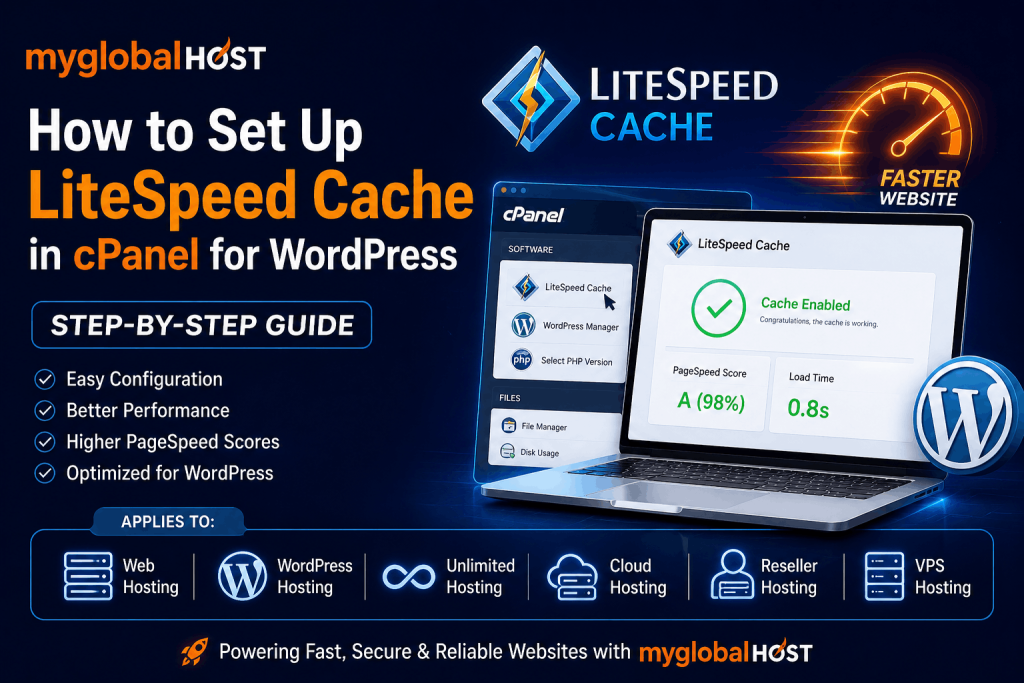
Why LiteSpeed Cache Is the Most Important Thing You Can Do for Your WordPress Site Right Now
If your WordPress website is slow, if it is scoring poorly on Google PageSpeed Insights, or if your Core Web Vitals are failing — there is a very high probability that LiteSpeed Cache is either not set up correctly or not set up at all.
Every myglobalHOST server runs LiteSpeed Web Server Enterprise — the fastest commercial web server available for shared and VPS hosting environments. Unlike Apache or Nginx, LiteSpeed has a native, built-in full-page cache engine called LSCache that operates at the server level. This means when LiteSpeed Cache is properly configured, your WordPress pages are served directly from the server’s memory — bypassing PHP execution, MySQL database queries, and disk reads entirely.
The result: pages that load in milliseconds instead of seconds. Core Web Vitals scores that pass Google’s thresholds. And rankings that reflect the fast, well-optimised site you have built.
This guide walks you through the complete setup process from zero — from enabling LSCache in your cPanel through to configuring every important setting in the WordPress plugin — with specific recommendations for myglobalHOST’s LiteSpeed environment.
Important: If you are currently running WP Rocket or any other third-party caching plugin, read our article on Does WP Rocket Hurt SEO? before proceeding. Running two full-page caching systems simultaneously creates conflicts that harm your SEO and break page delivery to Googlebot.
What Is LiteSpeed Cache and How Does It Differ from Plugin-Based Caching?
Most WordPress caching plugins — W3 Total Cache, WP Super Cache, WP Rocket — work at the PHP application layer. They intercept WordPress’s page generation process and save static HTML copies of your pages to disk. When a visitor arrives, PHP is still partially invoked to check the cache and serve the file.
LiteSpeed Cache works differently and fundamentally better.
LSCache is built directly into the LiteSpeed Web Server engine. When a page is cached, the server serves it directly from its own memory — without invoking PHP at all, without touching the database, and without any disk I/O. The request hits the server, cache is found, response goes out. The path is as short as it can physically be.
Independent benchmarks consistently show LiteSpeed Cache outperforming WP Rocket by substantial margins on LiteSpeed servers. And unlike WP Rocket, LiteSpeed Cache is completely free — it has over 6 million downloads on WordPress.org and is actively maintained by LiteSpeed Technologies.
On myglobalHOST’s LiteSpeed infrastructure, you get:
- Server-level page caching — zero PHP overhead for cached pages
- Object caching — database query results cached in Redis or Memcached
- Browser caching — via .htaccess headers at the server level
- CSS and JS minification — without the breakage risks of WP Rocket’s implementation
- Image optimisation — via QUIC.cloud’s free allocation
- CDN integration — via QUIC.cloud’s global edge network
- WooCommerce compatibility — with smart cache exclusions for cart and checkout
Before You Begin: Prerequisites
Before starting this setup, confirm the following:
- You have an active myglobalHOST hosting account — Web Hosting, WordPress Hosting, Unlimited Hosting, Cloud Hosting, or Reseller Hosting
- WordPress is installed and accessible (see How to Install WordPress in cPanel Using Softaculous if you haven’t done this yet)
- You can log into cPanel (see How to Login to cPanel at myglobalHOST)
- SSL is active on your domain (see How to Install and Activate SSL in cPanel Hosting)
- Any existing caching plugin (WP Rocket, W3 Total Cache, WP Super Cache) is deactivated and deleted before proceeding
Part 1: Enabling LiteSpeed Cache from cPanel (The Server-Level Step)
This step is unique to LiteSpeed hosting and is something WP Rocket and other PHP-based plugins simply cannot do. You are enabling the server’s native caching engine directly from your cPanel — no code, no SSH required.
Step 1 — Log In to Your cPanel
Log in to your cPanel through your myglobalHOST Client Dashboard at members.myglobalhost.in → Services → your hosting account → Log in to cPanel.
Alternatively, go directly to: yourdomain.com/cpanel or yourdomain.com:2083
Step 2 — Find the LiteSpeed Web Cache Manager
Once inside cPanel, scroll down to the Advanced section. Look for LiteSpeed Web Cache Manager. Click it.
If you do not see this option, your server is running LiteSpeed Web Server Enterprise with LSCache enabled — which all myglobalHOST servers do. If it’s still not visible, raise a support ticket through your Client Dashboard and our team will confirm LSCache status for your account.
Step 3 — Enable Cache for Your WordPress Installation
Inside the LiteSpeed Web Cache Manager, you will see a list of all WordPress installations detected under your cPanel account. This is LSCache’s WordPress management interface — it automatically scans your account and finds every WordPress install.
For each WordPress installation you want to enable caching for:
- Click Enable next to the WordPress installation
- The status indicator will change to show cache is active
- If you have multiple WordPress installs (addon domains, subdomains), you can enable them all in bulk using the Mass Enable Cache button
Critical: Make sure no other caching plugin is installed on the WordPress site before enabling. Two caching systems running simultaneously — even briefly — can create cached broken layouts that persist until manually cleared.
Step 4 — Verify the Cache Root Is Set
Before leaving the cPanel LiteSpeed manager, click on Cache Root Setup. This screen shows whether your server-level and VHost-level cache storage paths are correctly defined.
If you see a Set Missing Cache Roots button, click it. This sets the correct cache storage directories (/home/username/lscache) that LiteSpeed needs to function. Without this, LSCache cannot store cached pages.
Once you see both Server Level Cache Root and VHost Level Cache Root showing as configured, the server-side setup is complete.
Part 2: Installing the LiteSpeed Cache WordPress Plugin
The cPanel step above enables server-level caching. The WordPress plugin step gives you the configuration interface to control what gets cached, how, and with what optimisations.
Step 5 — Install LiteSpeed Cache Plugin
Log in to your WordPress dashboard (yourdomain.com/wp-admin).
Go to Plugins → Add New Plugin → search for LiteSpeed Cache → click Install Now → click Activate.
The plugin is published by LiteSpeed Technologies, has 6+ million active installs, and is verified on the WordPress.org plugin directory. It is free, with no premium upsell required for core caching functionality.
Once activated, you will see LiteSpeed Cache appear in your WordPress left sidebar menu.
Step 6 — Run the Setup Wizard (Optional but Recommended for Beginners)
On first activation, LiteSpeed Cache offers a setup wizard. If you are new to caching configuration, run through it — it applies safe default settings and links your site to QUIC.cloud (LiteSpeed’s CDN and image optimisation service) with a free API key.
For experienced users, skip the wizard and configure settings manually using the guide below.
Part 3: Configuring LiteSpeed Cache — Complete Settings Guide
This is the most important part of this guide. Navigate to LiteSpeed Cache in your WordPress sidebar. You will see multiple tabs across the top of the settings panel. We will work through each one.
Tab 1 — General Settings
QUIC.cloud CDN Click Link to QUIC.cloud and register for a free API key. This is required to use Image Optimisation and Critical CSS generation. The free plan provides 500MB of image optimisation per month and is sufficient for most small to medium sites.
Automatically Upgrade Set to ON — ensures you always run the latest version with security and compatibility patches.
Guest Mode Set to ON — delivers cached pages to new visitors on their very first request without waiting for a cookie check. Particularly valuable for mobile users. Also enable Guest Optimisation when Guest Mode is on.
Server IP Enter your server’s IP address, which you can find in your myglobalHOST Client Dashboard under your hosting account details, or use the IP Detector tool.
Tab 2 — Cache Settings
This is the core tab. These settings control what gets cached and what does not.
Enable Cache Set to ON — this activates the full-page cache for all cacheable pages.
Cache Logged-in Users Set to OFF unless you run a membership site. Caching logged-in users creates a private per-user cache that consumes significant server resources without meaningful benefit for most sites.
Cache Commenters Set to OFF — caching users with pending comments consumes resources unnecessarily for most sites.
Cache REST API Set to ON — many WordPress themes, the Block Editor (Gutenberg), and third-party plugins make REST API calls. Caching these responses reduces server load.
Cache Login Page Set to ON — caches your default WordPress login page.
Cache favicon.ico Set to ON.
Cache PHP Resources Set to ON — caches PHP files loaded as resources by other pages.
Mobile Cache Set to ON only if your site uses a mobile-specific theme or serves fundamentally different HTML to mobile devices. If your site is responsive (the same HTML adapts to all screen sizes), leave this OFF to avoid serving wrong cached versions.
Separate Cache for Cookies Set to OFF unless you specifically understand cookie-based cache variance requirements.
Cache TTL (Time to Live) Set to 604800 (7 days in seconds) for most pages. LiteSpeed Cache automatically purges relevant cached pages when you publish or update content — so a long TTL is safe and reduces cache miss rates.
Browser Cache TTL Set to 2592000 (30 days). This instructs visitors’ browsers to store static assets locally, reducing repeat load times dramatically.
Tab 3 — Cache Exclusions (Critical for WooCommerce and Membership Sites)
If you run WooCommerce, these exclusions are essential. Caching cart, checkout, and account pages causes order data to be served from the wrong cache — a critical failure.
Add the following to the Do Not Cache URIs field:
/cart
/checkout
/my-account
/wc-api
/?add-to-cart=
/wp-admin
/wp-login.php
Add to Do Not Cache Query Strings:
add-to-cart
wc-ajax
Add to Do Not Cache Cookies:
woocommerce_cart_hash
woocommerce_items_in_cart
wp_woocommerce_session_
wordpress_logged_in_
comment_author_
For further WooCommerce-specific configuration, see our dedicated guide on Fixing Compatibility Issues Between LiteSpeed Cache and WooCommerce.
Tab 4 — File Optimization (CSS and JavaScript)
These settings control minification and combination of CSS and JS files. Unlike WP Rocket’s aggressive implementation, LiteSpeed Cache’s file optimisation is generally safer — but still requires testing after enabling.
Minify HTML Set to ON. Safe for virtually all sites. Strips whitespace from HTML output, reducing page size.
Minify CSS Set to ON. Removes whitespace and comments from CSS files. Test your site visually after enabling — check all pages including mobile view, hover states, and dropdown menus.
Combine CSS Set to OFF initially. This merges all CSS files into fewer requests — powerful, but can break sites that load CSS in a specific order. Enable only after confirming Minify CSS works correctly, and re-test thoroughly.
Minify JavaScript Set to ON. Test thoroughly — particularly interactive elements, forms, and JavaScript-dependent navigation.
Combine JavaScript Set to OFF initially. Same reason as Combine CSS — enable cautiously after confirming individual minification is stable.
Load JavaScript Deferred Set to ON — defers non-critical JavaScript until after initial page render, improving Time to Interactive. Unlike WP Rocket’s Delay JS Execution (which holds scripts until user interaction), LiteSpeed’s defer loads scripts after the DOM is ready — safer and less likely to break functionality.
Exclude JQuery from Deferred Set to ON — jQuery must load synchronously on most WordPress sites as many plugins depend on it being available immediately.
Tab 5 — Media (Image Optimisation and Lazy Load)
Lazy Load Images Set to ON — defers off-screen images from loading until they scroll into view.
Lazy Load Iframes Set to ON — defers YouTube embeds, Google Maps, and other iframes.
Add Missing Sizes Set to ON — adds width and height attributes to images that are missing them, which prevents layout shifts (CLS — a Core Web Vitals metric).
LCP Image Optimisation / Responsive Placeholder Set to ON — this is the critical setting that prevents lazy loading from being applied to your above-the-fold hero image or featured image. As we documented in our Does WP Rocket Hurt SEO? article, applying lazy load to above-fold images directly worsens your Largest Contentful Paint score — the most important Core Web Vitals metric. LiteSpeed Cache identifies the LCP element automatically and excludes it from lazy loading.
LQIP (Low Quality Image Placeholder) Set to ON — shows a low-resolution blurred version of images while the full image loads, preventing layout shifts and improving perceived performance.
WebP Replacement Set to ON if you have connected QUIC.cloud. LiteSpeed Cache can automatically serve WebP versions of your JPEG and PNG images to browsers that support it — typically reducing image file sizes by 25-35%.
Tab 6 — Database Optimisation
Run these manually from time to time — do not schedule them to run too frequently on large sites.
Clean All Post Revisions Recommended — WordPress saves a revision every time you save a post. These accumulate and bloat your database. See our guide on How to Use cPanel Disk Usage Tool to Clean Up Server Space for complementary disk management steps.
Clean Auto Drafts Recommended — removes auto-saved drafts that serve no ongoing purpose.
Clean Expired Transients Recommended — clears expired WordPress transient records from the database.
Optimise Tables Run quarterly — reclaims fragmented space in MySQL tables. For more advanced database maintenance, see our guide on Repair and Optimise MySQL Database on cPanel/WHM Server.
Tab 7 — Image Optimisation via QUIC.cloud
Once your QUIC.cloud API key is connected from the General tab, go to LiteSpeed Cache → Image Optimization.
Click Send Optimisation Request — this submits your existing images to QUIC.cloud’s servers for compression and WebP conversion. The free plan provides 500MB monthly. For most small to medium sites, this is sufficient.
QUIC.cloud optimises images remotely and sends back compressed versions. You do not need to install any additional tools, ImageMagick extensions, or third-party image compression services. (For reference, if you ever need ImageMagick for other purposes, see How to Install Imagick PHP Extension from WHM Interface.)
Tab 8 — CDN Settings
Using QUIC.cloud CDN QUIC.cloud is LiteSpeed’s own CDN, built specifically for WordPress performance. It caches both static assets and dynamic content across 80+ global Points of Presence — including data centres in India, Singapore, the US, Europe, and beyond.
To enable: Go to LiteSpeed Cache → CDN → click Link to QUIC.cloud → follow the DNS configuration instructions.
For domains registered through myglobalHOST, you can manage DNS records directly through cPanel. See How to Add, Edit and Manage DNS in cPanel for the steps to update your DNS configuration.
Using Cloudflare as CDN LiteSpeed Cache includes a Cloudflare API integration that allows you to purge Cloudflare’s cache directly from WordPress when content is updated. Before enabling Cloudflare, we strongly recommend reading our article on Does Cloudflare Hurt SEO? What Google Won’t Tell You — particularly the sections on Bot Fight Mode and Rocket Loader, which can interfere with LiteSpeed Cache’s own optimisation features if both are running simultaneously.
Tab 9 — Advanced Settings (ESI and Cache Variance)
ESI (Edge Side Includes) Set to OFF unless you have specific dynamic personalised content that must be excluded from page-level caching (shopping cart fragments, user-specific widgets). ESI is a powerful but advanced feature — leave it off until you understand it fully.
Instant Click Set to ON — prefetches pages when a visitor hovers over a link, making navigation feel instant. Low risk, high perceived performance benefit.
Object Cache Object cache stores the results of database queries in memory (Redis or Memcached) rather than hitting the database on every request. On myglobalHOST’s VPS plans, Redis object caching is available and can be configured. On shared hosting plans, object cache via transient storage in the database is the default. To enable Redis, raise a support ticket through your Client Dashboard.
Part 4: Enabling PHP OPcache in cPanel (Boosts PHP Performance Alongside LSCache)
While LiteSpeed Cache handles page-level and browser-level caching, PHP OPcache handles the PHP execution layer — caching compiled PHP bytecode in memory so PHP files don’t need to be recompiled on every request.
Enabling OPcache on top of LiteSpeed Cache gives you two complementary caching layers: one for full pages, one for PHP execution speed. Follow our guide on How to Enable OPcache in cPanel to activate this in your account.
Part 5: Forcing HTTPS and WWW Consistency After Cache Setup
After setting up caching, ensure your site is consistently serving HTTPS — mixed content (some pages on HTTP, some on HTTPS) causes caching inconsistencies and SEO issues.
Use our guides:
- Force HTTPS Using .htaccess — the quickest one-file fix
- Force WWW in Your .htaccess File in cPanel for WordPress — ensures consistent URL canonicalisation
Both should be in place before finalising your cache configuration, as URL inconsistencies can cause duplicate cached versions of the same page.
Part 6: Taking a Full Backup Before and After Configuration
Any significant configuration change — including enabling caching — should be preceded by a full site backup.
See: How to Take a Full Account Backup in cPanel Manually
This creates a complete backup of your files and databases stored in your cPanel account, which you can restore instantly if anything goes wrong during cache configuration.
Part 7: Verifying LiteSpeed Cache Is Working
After completing the above configuration, verify that pages are actually being served from cache.
Method 1 — Check HTTP Response Headers
Using your browser’s Developer Tools (press F12 → Network tab), reload your homepage. Click on the first request (your domain URL) and look at the Response Headers.
Look for:
x-litespeed-cache: hit
If you see hit, the page was served from LiteSpeed Cache. If you see miss, the page was generated dynamically (expected on first visit after cache was cleared). If you see no-cache, something is preventing caching — usually a plugin setting or an excluded URL rule.
Method 2 — View Page Source
Right-click on any cached page and select View Page Source. Scroll to the very bottom of the HTML. LiteSpeed Cache adds a comment at the end of cached pages:
<!-- LSCACHE_WEB_OPID: [ID], [timestamp] -->
If you see this comment, the page is being served from cache correctly.
Method 3 — Google PageSpeed Insights
Go to Google PageSpeed Insights and run a test on your homepage. On a properly configured LiteSpeed Cache setup on myglobalHOST’s NVMe or SSD infrastructure, you should see:
- Largest Contentful Paint (LCP): under 2.5 seconds
- Cumulative Layout Shift (CLS): under 0.1
- Interaction to Next Paint (INP): under 200ms
- Time to First Byte (TTFB): under 800ms
If your scores are still poor after completing this guide, check the Opportunities and Diagnostics section of PageSpeed Insights for specific remaining issues.
Part 8: Managing Cache for Reseller Hosting Customers (WHM-Level)
If you are a Reseller Hosting customer managing multiple client WordPress sites, LiteSpeed Cache offers a significant advantage: you can enable, disable, and manage LSCache across all client WordPress installations from your WHM panel — without logging into each individual client cPanel.
In WHM, go to LiteSpeed Web Server → LiteSpeed Cache Management. From here:
- Scan to discover all WordPress installations across all client accounts
- Mass Enable Cache to activate LSCache on all discovered installs simultaneously
- Version Manager to ensure all client sites run the same LSCache plugin version
- Bulk Delete LSCache Folder — if you ever need to completely clear cache across all accounts, see our dedicated guide: Bulk Delete LSCache Folder in cPanel/WHM
This WHM-level management is one of the most powerful features available to resellers using LiteSpeed hosting — and it is simply not possible with plugin-based caching tools like WP Rocket.
Common Issues and Fixes
Issue: Pages Look Broken After Enabling File Optimisation
Fix: Go to LiteSpeed Cache → File Optimization → disable Combine CSS and Combine JavaScript. Clear cache (LiteSpeed Cache → Manage → Purge All). Test again. Re-enable features one at a time to identify the conflict.
Issue: LiteSpeed Cache Is Active but PageSpeed Score Is Still Poor
Fix: Check if your images are optimised (run QUIC.cloud image optimisation), check if HTTPS redirect is causing redirect chains (see Force HTTPS Using .htaccess), and check if OPcache is enabled (see How to Enable OPcache in cPanel).
Issue: WordPress Admin Appears Cached or Shows Wrong Content
Fix: The WordPress admin (/wp-admin) should never be cached. Confirm it is listed under Do Not Cache URIs in LiteSpeed Cache → Cache → Exclusions.
Issue: WordPress Login Page Redirects or Shows Error
Fix: Check that your HTTPS redirect in .htaccess is correctly configured. See How to Fix Error 503 Service Unavailable in WordPress if you encounter service errors after cache activation.
Issue: WooCommerce Cart Shows Wrong Products or Empty After Cache
Fix: Confirm your WooCommerce exclusions are in place as listed in Part 3 Tab 3 above. See Fixing Compatibility Issues Between LiteSpeed Cache and WooCommerce for a complete compatibility guide.
Issue: Cron Jobs Not Running After Enabling Cache
Fix: Caching can interfere with WordPress’s native WP-Cron if it is triggered via a cached page URL. See How to Set Up, Edit and Manage Cron Jobs in WordPress for the correct approach to scheduling system cron jobs in cPanel rather than relying on WP-Cron.
Issue: Emails Not Sending After Cache Changes
Fix: Caching does not directly affect email delivery, but a misconfigured site can sometimes affect contact form submission processing. See WordPress SMTP Setup Guide to ensure your email delivery is correctly configured independently of caching.
Issue: 404 Errors on Pages After Cache Setup
Fix: Sometimes WordPress permalink cache conflicts with LiteSpeed Cache. Go to WordPress Settings → Permalinks → click Save Changes (without changing anything) to flush the rewrite rules. See How to Fix Error 404 in WordPress Website for a complete fix guide.
The Complete LiteSpeed Cache Setup Checklist
Use this checklist to verify your setup is complete:
Server Level (cPanel)
- ✅ LiteSpeed Web Cache Manager accessed in cPanel
- ✅ Cache enabled for all WordPress installations
- ✅ Cache Root set for Server Level and VHost Level
- ✅ Full site backup taken before configuration
Plugin — General
- ✅ QUIC.cloud API key linked
- ✅ Auto Upgrade set to ON
- ✅ Guest Mode set to ON
- ✅ Server IP entered
Plugin — Cache
- ✅ Enable Cache set to ON
- ✅ Cache Logged-in Users set to OFF
- ✅ Cache TTL set to 604800
- ✅ Browser Cache TTL set to 2592000
- ✅ WooCommerce exclusions added (if applicable)
Plugin — File Optimization
- ✅ Minify HTML ON
- ✅ Minify CSS ON (tested)
- ✅ Minify JavaScript ON (tested)
- ✅ Load JavaScript Deferred ON
- ✅ Exclude jQuery from Deferred ON
- ✅ Combine CSS OFF (until individually tested)
- ✅ Combine JavaScript OFF (until individually tested)
Plugin — Media
- ✅ Lazy Load Images ON
- ✅ LCP Image Optimisation ON
- ✅ LQIP ON
- ✅ Add Missing Sizes ON
- ✅ WebP Replacement ON (if QUIC.cloud connected)
Plugin — Database
- ✅ Post Revisions cleaned
- ✅ Auto Drafts cleaned
- ✅ Expired Transients cleaned
Verification
- ✅ x-litespeed-cache: hit confirmed in response headers
- ✅ LSCACHE comment visible in page source
- ✅ PageSpeed Insights tested and scores reviewed
- ✅ HTTPS working consistently on all pages
- ✅ WooCommerce cart and checkout tested (if applicable)
- ✅ PHP OPcache enabled in cPanel
LiteSpeed Cache vs WP Rocket on myglobalHOST: The Definitive Answer
| Feature | LiteSpeed Cache | WP Rocket |
|---|---|---|
| Cost | Free | $59–$299/year |
| Caching Layer | Server-level (faster) | Plugin-level (slower) |
| Compatibility with myglobalHOST LiteSpeed servers | Native — built for this | Conflict risk — duplicate caching |
| Structured Data Safety | No documented issues | Documented failures (SEJ 2020) |
| LCP-aware Lazy Loading | Yes (built-in) | Yes (from v3.16 only) |
| Remove Unused CSS Risk | Not implemented (safer) | High breakage risk |
| WHM Mass Management | Yes | No |
| QUIC.cloud CDN Integration | Native | Not compatible |
| Image Optimisation | Via QUIC.cloud (free) | Via Imagify (paid) |
| WooCommerce Support | Built-in exclusions | Manual exclusion needed |
The conclusion is straightforward: on myglobalHOST’s LiteSpeed infrastructure, LiteSpeed Cache is the superior choice in every measurable dimension — performance, safety, cost, and integration depth.
Need Help with Your LiteSpeed Cache Setup?
If you have followed this guide and are still experiencing slow page loads, poor PageSpeed scores, or caching issues, our technical support team is available around the clock.
Raise a support ticket through your myglobalHOST Client Dashboard with details of your domain, the issue you are experiencing, and the settings you have applied. Our team will review your server configuration, LSCache status, and WordPress plugin settings and provide specific guidance.
You can also check:
Related Knowledge Base Articles
- How to Install WordPress in cPanel Using Softaculous
- Fixing Compatibility Issues Between LiteSpeed Cache and WooCommerce
- Does WP Rocket Hurt SEO? What WordPress Users Need to Know
- Does Cloudflare Hurt SEO? What Google Won’t Tell You
- How to Enable OPcache in cPanel
- Force HTTPS Using .htaccess
- How to Install and Activate SSL in cPanel Hosting
- How to Add, Edit and Manage DNS in cPanel
- How to Take a Full Account Backup in cPanel Manually
- Bulk Delete LSCache Folder in cPanel/WHM
- How to Login to cPanel at myglobalHOST
- Repair and Optimise MySQL Database on cPanel/WHM Server
- How to Use cPanel Disk Usage Tool to Clean Up Server Space
- How to Fix Error 404 in WordPress Website
- WordPress SMTP Setup Guide
- How to Setup, Edit and Manage Cron Jobs in WordPress
- WordPress Hosting in India — The Ultimate Guide
Explore myglobalHOST Plans — All Powered by LiteSpeed with LSCache Included
| Plan | LSCache | NVMe Storage | Best For |
|---|---|---|---|
| Web Hosting | ✅ Included | ✅ Yes | Blogs, small business websites |
| WordPress Hosting | ✅ Included | ✅ Yes | WordPress sites of all sizes |
| Unlimited Hosting | ✅ Included | ✅ Yes | Multiple websites under one plan |
| Cloud Hosting | ✅ Included | ✅ Yes | High-traffic and growing websites |
| Reseller Hosting | ✅ WHM-level management | ✅ Yes | Agencies, developers, web studios |
| SSD VPS | ✅ Configurable | SSD | Full control VPS environments |
| NVMe VPS | ✅ Configurable | ✅ NVMe | Maximum performance VPS |
This article is part of the myglobalHOST Knowledge Base — step-by-step guides on WordPress, cPanel, hosting, SEO, and server management written specifically for myglobalHOST customers.


