
Search for the Solution?
What Are WordPress Connectors? Complete Guide 2026
What Are WordPress Connectors? Complete Guide to Settings → Connectors in WordPress 7.0 (2026)
The New WordPress Feature Almost Nobody Is Explaining Clearly
On May 20, 2026, WordPress 7.0 launched with one of the most significant changes to the WordPress admin in its 23-year history: a brand-new menu item appeared under Settings → Connectors.
If you updated to WordPress 7.0 and noticed “Connectors” in your Settings menu for the first time, you are not alone in wondering what it is. The feature is new, the documentation is sparse, and most guides covering it are written for developers — not the bloggers, small business owners, and agencies who actually use WordPress every day.
This guide explains WordPress Connectors in plain language: what they are, why they were added, which WordPress version introduced them, how to set them up step by step, which AI providers you can connect, what the Connectors feature does for your website, its limitations, and what is coming in future WordPress versions.
Part 1: What Are WordPress Connectors?
WordPress Connectors are a centralised system for managing connections between your WordPress website and external services — starting with AI providers like OpenAI (ChatGPT), Anthropic (Claude), and Google (Gemini).
Before WordPress 7.0, if you wanted to use AI features across multiple plugins on your WordPress site, each plugin asked for your API key separately. An SEO plugin needed one OpenAI key. A content generator plugin needed another. A media plugin needed a third. You ended up with the same API key entered in five different places, stored inconsistently, with no central view of what was connected.
WordPress Connectors solve this by providing one place to manage everything.
The simplest definition: WordPress Settings → Connectors is a secure credential vault — a central admin screen where you enter your AI provider’s API key once, and every plugin and theme on your site that supports WordPress AI features can use it automatically, without asking you for credentials again.
Matt Mullenweg, co-founder of WordPress, described the inspiration directly: the feature is similar to Claude’s connections panel, where with a couple of clicks you can connect to AI providers. The intent is to remove the friction of every plugin asking for API keys or similar and storing them in plain text in the database.
Part 2: Which WordPress Version Introduced Connectors?
WordPress Connectors were introduced in WordPress 7.0, released May 20, 2026.
Here is the complete version timeline:
| Date | Milestone |
|---|---|
| February 2026 | Matt Mullenweg proposed the Connectors concept on WordPress Slack |
| February 26, 2026 | WordPress 7.0 Beta 2 released — first public appearance of the Connectors UI |
| March 18, 2026 | Official dev note published on Make WordPress Core: “Introducing the Connectors API in WordPress 7.0” |
| April 9, 2026 | Original planned release date (delayed for stability work) |
| May 14, 2026 | WordPress 7.0 Release Candidate 4 — stable Connectors API |
| May 20, 2026 | WordPress 7.0 stable release — Connectors available to all users |
| August 2026 | WordPress 7.1 planned — advanced connector filtering and granular permissions |
| December 2026 | WordPress 7.2 planned — further AI infrastructure development |
Minimum requirements to use WordPress Connectors:
- WordPress 7.0 or higher (update from your Dashboard → Updates)
- PHP 8.3 recommended (minimum PHP 7.4 supported)
- An account with at least one AI provider (OpenAI, Anthropic, or Google)
- Administrator role access (Connectors is an admin-only screen)
How to check your WordPress version: Log in to WordPress Dashboard → at the bottom right of the Dashboard Overview, your current version number is displayed. Alternatively: Dashboard → Updates — if you see “WordPress 7.0” as available, you are on an older version and need to update first.
For PHP version management on myglobalHOST: How to Set Up LiteSpeed Cache in cPanel for WordPress — your PHP version is set in cPanel → MultiPHP Manager.
Part 3: What Does the Connectors Screen Actually Look Like?
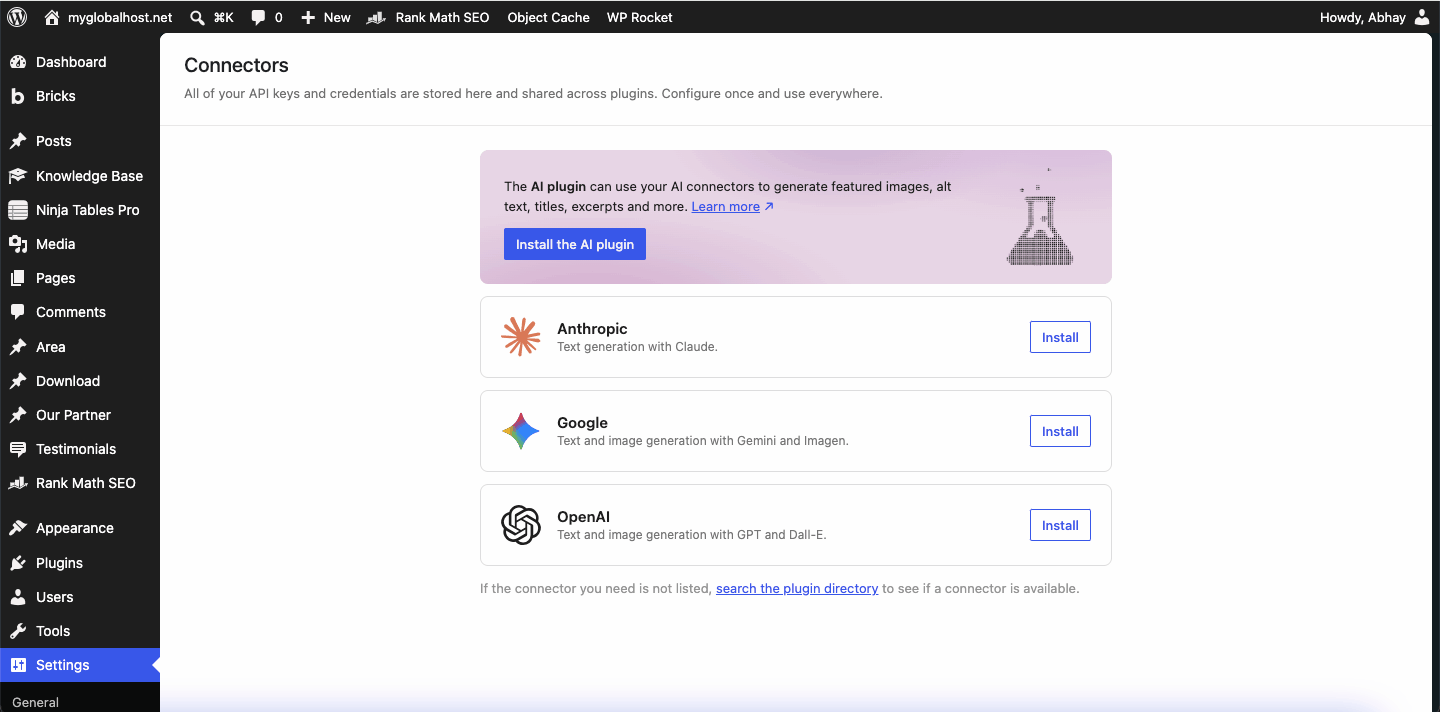
When you navigate to Settings → Connectors in a WordPress 7.0 admin, you will see a dedicated page with three default providers listed:
- OpenAI — with a logo, brief description, and a field for your API key
- Anthropic — with Claude branding, description, and API key input
- Google — for Gemini AI, with logo, description, and API key input
Each provider card has:
- A provider logo and name
- A short description of what that AI service provides (e.g., “Text generation with Claude” for Anthropic)
- An API key input field (masked on the frontend — characters are hidden once saved)
- A link to get the API key from the provider’s platform
- A status indicator showing whether the connection is active
The UI enables users to add, delete, and update external connections. It is powered by an extensible, route-based architecture that allows plugins and themes to hook into the page and expand its functionality. API keys are masked on the frontend and in REST API responses.
If you do not have a provider plugin installed, the Connectors page handles plugin install, activation, and deactivation flows — you can install the official AI provider plugin directly from the Connectors page without going to the Plugins menu separately.
Part 4: The Three Components of WordPress AI Infrastructure
Understanding Connectors requires understanding how they fit into WordPress 7.0’s complete AI infrastructure. Three components work together:
Component 1 — Settings → Connectors (The Power Plug)
This is the screen you are reading about. It is the credential management layer — where you enter API keys that the rest of the system uses. Think of it as the power plug: it provides the energy (authenticated access to AI services) that everything else runs on.
The Connectors screen manages:
- API key storage (securely masked, encrypted in the database)
- Provider discovery (which AI services are available)
- Connection status (whether each provider is active)
- Plugin management (install/activate provider plugins)
Component 2 — The WP AI Client (The Routing Layer)
The AI Client is the PHP library inside WordPress core that plugins and themes use to actually send requests to your connected AI providers. A plugin calls wp_ai_client_prompt('Summarise this article') and the AI Client handles routing the request to whichever provider you have configured in Settings → Connectors — without the plugin needing to know which AI service you use.
Before WordPress 7.0, plugins handled API keys separately — a content generator plugin required one OpenAI key, an SEO plugin required another. After 7.0, a site owner enters an API key once, and any plugin built against the AI Client can use that connection without asking for a separate key.
Component 3 — The Abilities API (The Menu)
Abilities are specific tasks that AI can perform on your WordPress site — defined and registered by plugins and WordPress core. Examples include create_post, get_post, find_posts, update_post, and custom abilities registered by plugins (generate alt text, write excerpt, suggest SEO tags, etc.).
Think of it this way: Connectors is the power plug. The AI Client is the routing system. The Abilities API is the menu of what the AI can do.
Part 5: Step-by-Step — How to Connect an AI Provider
Here is the exact process for setting up WordPress Connectors and connecting your first AI provider. This takes approximately 5–10 minutes.
Step 1 — Verify You Are on WordPress 7.0
Go to Dashboard → Updates. If you see a prompt to update to WordPress 7.0, do so. Click Update Now and wait for the update to complete.
⚠️ Before updating: Take a full backup of your WordPress site. See: How to Take a Full Account Backup in cPanel Manually
Step 2 — Navigate to Settings → Connectors
After updating to WordPress 7.0, log in to your WordPress admin dashboard and look in the left sidebar under Settings. You will now see Connectors as a new menu item. Click it.
Step 3 — Choose Your AI Provider
You will see three provider cards: OpenAI, Anthropic, and Google. You need an account and API key from at least one of these. Here is what each offers:
OpenAI (ChatGPT / GPT-4 / GPT-4o)
- Best known AI service globally
- Strong for general content generation, code, summarisation
- Pricing: pay-as-you-go based on tokens used
- Get API key from: platform.openai.com/api-keys
Anthropic (Claude)
- The AI powering this very knowledge base article
- Particularly strong for long-form content, analysis, and nuanced writing
- Pricing: pay-as-you-go based on tokens used
- Get API key from: console.anthropic.com → Settings → API Keys
Google (Gemini)
- Google’s AI model, well-integrated with Google search context
- Pricing: free tier available (Google AI Studio), paid tiers via Google Cloud
- Get API key from: aistudio.google.com → Get API Key
Step 4 — Get Your API Key from the Provider
For OpenAI:
- Go to platform.openai.com/api-keys
- Sign in or create an account
- Click Create new secret key
- Name it (e.g., “WordPress yoursite.com”)
- Copy the key — you will only see it once
⚠️ Important: Set a usage limit in your OpenAI account (Settings → Limits → Set monthly budget). AI costs are pay-per-token and can accumulate rapidly if plugins make unexpected requests.
For Anthropic (Claude):
- Go to console.anthropic.com
- Sign in or create an account
- From the Workspace dropdown, click Create workspace → name it after your website → Create
- Open the workspace → click Create key → name the key → copy it
- Set a monthly spending limit: click Limits from the Manage menu
For Google (Gemini):
- Go to aistudio.google.com
- Click Get API Key
- Create a new project (or select an existing one)
- Click Create API Key
- Copy the key
Step 5 — Install the Provider Plugin (If Not Already Installed)
On the Settings → Connectors page, click on the provider card you want to configure. If the corresponding official plugin is not installed, the Connectors page will show an Install button. Click it — WordPress installs and activates the official AI provider plugin directly from within the Connectors screen.
The official provider plugins are:
- AI Provider for OpenAI — search WordPress.org plugins
- AI Provider for Anthropic — search WordPress.org plugins
- AI Provider for Google — search WordPress.org plugins
Step 6 — Enter Your API Key
In the provider’s configuration drawer on the Settings → Connectors page:
- Click the provider card to expand it
- Find the API Key field
- Paste your API key
- Click Save or Connect
WordPress validates the key server-side and stores it securely in the database. The key is masked immediately after saving — you will see only asterisks, never the actual key again in the UI.
Step 7 — Verify the Connection
After saving, the provider card should show a Connected status indicator. You can now use any WordPress plugin or theme that supports the WordPress AI Client — they will automatically use your configured provider without asking for API keys separately.
Step 8 — Test an AI Feature
With a provider connected, test it with a compatible feature. In the WordPress Block Editor:
- Open a new post or page
- Select some existing text
- Look for an AI toolbar button or context menu option
- Choose an action (Summarise, Expand, Generate excerpt, etc.)
- The connected AI provider should respond within a few seconds
If no AI features appear in the Block Editor, your installed plugins may not yet support the WordPress AI Client — check for plugin updates or install an AI-compatible plugin.
Part 6: Security — How WordPress Protects Your API Keys
API key security is the most important concern with the Connectors system. An exposed API key means anyone can use your AI credits — with charges appearing on your bill.
How WordPress 7.0 protects your API keys:
- Frontend masking — API keys are masked on the Connectors screen immediately after saving. You never see the raw key in the browser UI.
- REST API masking — The WordPress REST API also masks API keys in its responses. No GET request to WordPress’s API can reveal your stored keys.
- Database encryption — Keys are stored in WordPress’s options table but obfuscated through WordPress core’s credential storage approach.
- Workspace isolation (Anthropic) — Creating a separate Anthropic workspace per website means one compromised key affects only that site, not all your sites.
- Project isolation (OpenAI) — Create a separate OpenAI project per website for the same isolation benefit.
What YOU must do to protect your API keys:
- Set spending limits at the provider level — Do not rely on plugin-level controls. Set hard monthly budget limits in your OpenAI account, Anthropic workspace, and Google Cloud project. AI costs are not automatically capped.
- Use project/workspace isolation — Create one OpenAI project and one Anthropic workspace per website you connect.
- Never commit API keys to Git — If you export your WordPress database for development, ensure API keys are excluded or redacted from any shared repository.
- Audit plugin permissions — The Abilities API lets plugins perform actions (create posts, update content) based on AI responses. Before enabling AI features, review which Abilities each plugin registers.
- Apply the principle of least privilege — Limit models, APIs, origins, and quotas to only what your site actually requires.
Part 7: What Connectors Enable — Real Use Cases for Indian WordPress Users
Once your AI provider is connected, here is what becomes possible through WordPress-compatible plugins and themes:
Content Creation and Writing Assistance
- Expand a heading into a full paragraph — select an H2 → AI writes the section
- Summarise long articles into excerpts automatically
- Generate meta descriptions from page content
- Suggest tags and categories based on content
Media and Images
- Automatic alt text generation — upload an image → AI generates descriptive alt text for accessibility and SEO
- Image caption suggestions based on file content
SEO Assistance
- SEO title suggestions for posts and pages
- Keyword density analysis and improvement suggestions
- Schema markup recommendations based on content
WooCommerce and E-commerce
- Product description generation from product attributes
- Variation description writing for clothing sizes, colours, etc.
- Review summarisation for product pages
Agency and Developer Workflows
- Content generation at scale from client briefs
- Code explanation for WordPress hooks and filters
- Custom Abilities registration — developers can define site-specific AI tasks using PHP functions
Part 8: Current Limitations of WordPress Connectors (June 2026)
Being honest about what Connectors does not yet do is important. Several features are planned but not yet available:
1. No role-based access control — As of WordPress 7.0, site administrators cannot limit which user roles can access specific AI models or providers. All users who can trigger AI features can use the connected provider. Workaround: use custom code hooks or third-party permission plugins.
2. No advanced connector filtering — Data filters that allow you to control which content passes through AI processing have been postponed. The team has postponed data filters until WordPress 7.1, scheduled for August 2026.
3. Third-party plugin extensibility is limited — Third-party plugins cannot yet surface their own custom providers on the Settings → Connectors screen. That extensibility layer is in development as an experimental Gutenberg API and is expected in WordPress 7.1.
4. No native content generation blocks — WordPress core does not yet include user-facing content blocks for automatically writing or summarising page text. You need a compatible plugin to access content generation features in the Block Editor.
5. Costs are not automatically controlled — Unlike a flat monthly subscription, AI API costs have no automatic hard stop unless you explicitly configure spending limits at the provider level. Plugins making AI requests on your behalf (background indexing, automatic processing) can accumulate costs rapidly without visible warnings in WordPress itself.
What is coming in WordPress 7.1 (August 2026):
- More granular permissions and advanced connector filtering
- Refined control over what AI agents can see and do
- Expanded third-party provider registration
What is coming in WordPress 7.2 (December 2026):
- Further AI infrastructure development
- Real-time collaboration features (postponed from 7.0)
Part 6b: API Key Source Priority — Three Ways to Provide Your API Key
This is one of the most important technical details that most Connectors guides skip entirely — from the official WordPress Core documentation.
WordPress does not require you to enter your API key through the admin UI. The system checks for credentials in this exact priority order:
Priority 1 → Environment Variable (Most Secure) Priority 2 → PHP Constant in wp-config.php (Secure, Developer-Friendly) Priority 3 → Database via Admin UI (Default for most users)
Priority 1 — Environment Variable
Set the API key as a server environment variable. WordPress checks for this first before looking anywhere else. The naming convention is {PROVIDER_ID}_API_KEY:
| Provider | Environment Variable |
|---|---|
| Anthropic | ANTHROPIC_API_KEY |
| OpenAI | OPENAI_API_KEY |
GOOGLE_API_KEY |
Add to your .htaccess file in public_html on myglobalHOST:
SetEnv ANTHROPIC_API_KEY sk-ant-yourkey...
SetEnv OPENAI_API_KEY sk-yourkey...
Why it is the most secure: Environment variables are not stored in the WordPress database. They cannot be extracted via phpMyAdmin, REST API, or any WordPress admin screen. The Connectors page shows “Environment Variable” as the source and disables the input field.
Priority 2 — PHP Constant
Define the key in wp-config.php before the /* That's all, stop editing! */ line:
define( 'ANTHROPIC_API_KEY', 'sk-ant-yourkey...' );
define( 'OPENAI_API_KEY', 'sk-yourkey...' );
define( 'GOOGLE_API_KEY', 'your-google-key...' );
When a PHP constant is found, the Connectors screen shows “PHP Constant” as the source indicator and does not allow editing the key from the UI.
Priority 3 — Database (Via Admin UI)
This is what happens when you enter the key directly in Settings → Connectors. WordPress stores it in the wp_options table as connectors_ai_anthropic_api_key, connectors_ai_openai_api_key, etc.
⚠️ Critical transparency note from official WordPress documentation: API keys stored in the database are NOT encrypted — they are stored as plain text. They ARE masked in the admin UI and in REST API responses, but a direct database export (phpMyAdmin → Export or wp db export) will expose the raw key. This is why environment variables or PHP constants are preferable for production sites, especially if you share database access with developers or use staging workflows.
The Key Source Indicator
The Connectors screen shows one of three indicators next to each key field:
- “Environment Variable” — most secure, cannot be edited from UI
- “PHP Constant” — secure, cannot be edited from UI
- “Database” — entered via admin, can be changed from UI
This indicator is a security audit tool — you can see at a glance where each key is stored.
Part 6c: For Developers — Public API Functions and the wp_connectors_init Hook
Three Public API Functions
All three are available after the WordPress init hook.
wp_is_connector_registered( $connector_id ) — Check if a connector exists:
if ( wp_is_connector_registered( 'anthropic' ) ) {
    // Safe to use Anthropic-powered features
}
wp_get_connector( $connector_id ) — Get a connector’s full data array:
$connector = wp_get_connector( 'openai' );
if ( $connector ) {
    $name = $connector['name'];        // "OpenAI"
    $type = $connector['type'];        // "ai_provider"
    $method = $connector['authentication']['method']; // "api_key"
}
wp_get_connectors() — Get all registered connectors:
$all_connectors = wp_get_connectors();
foreach ( $all_connectors as $id => $connector ) {
    echo $connector['name'] . ': ' . $connector['description'];
}
The wp_connectors_init Action
Fires after all built-in connectors are registered. Use it to register custom connectors or override existing connector metadata:
add_action( 'wp_connectors_init', function() {
    // Register custom AI provider or override metadata here
});
Auto-Discovery: You Usually Don’t Need to Register Manually
If you are building a plugin that registers with the WP AI Client’s default provider registry, the Connectors API automatically discovers your provider and creates a connector for it with correct metadata. You do not need to manually register a connector — WordPress does it for you.
Part 13: Troubleshooting Common WordPress Connectors Problems
Problem 1 — “Connectors” is missing from my Settings menu
Cause: You are not logged in as an Administrator. Settings → Connectors is visible only to WordPress Administrators (and Super Admins on Multisite).
Fix: Log in with an Administrator account. If you are an Administrator but still cannot see it, check your WordPress version — Connectors only exists in WordPress 7.0+.
Problem 2 — Connectors screen is blank / scripts not loading
Cause: Asset minification systems occasionally strip the JavaScript needed to render the Connectors admin panel. This is a documented conflict with aggressive JS optimisation — a real problem on LiteSpeed + caching environments.
Fix for myglobalHOST with LiteSpeed Cache: Go to LiteSpeed Cache → Page Optimisation → JS Excludes → add the Connectors page URL to the exclusion list. Or temporarily disable JS Combine/Minify and test whether the screen loads. Alternatively add to wp-config.php:
define( 'SCRIPT_DEBUG', true );
Problem 3 — API key shows “Environment Variable” but I did not set one
Cause: A server environment variable (ANTHROPIC_API_KEY, OPENAI_API_KEY, or GOOGLE_API_KEY) exists in your hosting environment — possibly set in .htaccess or by a previous configuration.
Fix: Check your .htaccess and wp-config.php for SetEnv or define() statements. Remove if not needed.
Problem 4 — AI features not appearing in Block Editor after connecting
Cause: The Block Editor AI features (Summarise, Generate excerpt, etc.) come from plugins that support the WP AI Client, not from WordPress core itself. Connecting a provider is necessary but not sufficient — you need a compatible plugin installed and activated.
Fix: Install an AI-capable plugin that declares WordPress AI Client compatibility. Search WordPress.org plugins for “WordPress AI Client” or “Abilities API.”
Problem 5 — Authentication timeout errors after enabling Connectors
Cause: Objects cached in object caching platforms can conflict with newly defined database constants. This is a documented conflict.
Fix: Clear all caches: LiteSpeed Cache → Manage → Purge All. If using Redis/Memcached, flush the object cache. Test again.
Problem 6 — Unexpected AI API costs after enabling Connectors
Cause: Background plugins are making AI requests using your connected credentials without visible prompts.
Fix:
- Check your provider dashboard for usage breakdown (OpenAI: Platform → Usage; Anthropic: Workspaces → Usage)
- Deactivate AI-capable plugins one by one to identify the source
- Set hard monthly spending limits at the provider level — this is the only reliable control
Part 14: Migrating From Legacy AI Plugins to WordPress Connectors
If you currently use AI plugins that stored their own API keys pre-7.0, here is the clean migration path:
Step 1 — Identify legacy AI plugins: Any plugin with its own API key settings field (in the plugin’s own Settings page) is a legacy integration.
Step 2 — Check for WP AI Client compatibility: Look for plugin changelogs from May 2026+ mentioning “WordPress 7.0 Connectors support” or “WP AI Client integration.”
Step 3 — Update all plugins: Dashboard → Updates → Update All before configuring Connectors.
Step 4 — Configure Settings → Connectors: Enter your API key. Compatible plugins will immediately begin using the Connectors credential.
Step 5 — Test and remove legacy keys: Confirm AI features still work → remove the API key from the plugin’s own settings page.
Step 6 — Handle incompatible plugins: Plugins not yet updated continue using their own key storage and require separate management until the developer releases a compatible update.
Staging Deployment Checklist
Before enabling Connectors on a live production site:
- ✅ Test on a staging site clone first
- ✅ Set spending limits on all provider accounts before connecting
- ✅ Audit which Abilities each AI plugin registers
- ✅ Verify LiteSpeed Cache does not interfere with Connectors panel loading
- ✅ Monitor provider usage dashboards for 24 hours after enabling
- ✅ Full backup before updating to WordPress 7.0 on production: How to Take a Full Account Backup in cPanel Manually
Part 9: WordPress Connectors on Multisite Networks
For WordPress Multisite administrators, Connectors works slightly differently.
In a Multisite network, sub-site administrators can access their own Settings → Connectors screen and configure external integrations independently from the network. For standalone sites, having a Connectors settings page makes perfect sense. For Multisite, this means each sub-site can have its own API provider configured — providing flexibility but also creating the potential for multiple API keys and costs across the network.
Network administrators should:
- Decide whether sub-sites should manage their own AI connections or whether a network-level configuration is preferable
- Consider whether sub-site owners have the technical understanding to manage API costs safely
- Audit which sub-sites have active connections from the network admin panel
Part 10: WordPress Connectors vs Individual Plugin API Keys — The Difference That Matters
To understand why Connectors is significant, compare the before and after:
Before WordPress 7.0 (without Connectors):
- SEO plugin: asks for OpenAI key → stores in its own settings table
- Content generator plugin: asks for OpenAI key → stores in its own settings table
- Media plugin: asks for Anthropic key → stores in its own settings table
- Result: same key entered 3 times, stored in 3 different places, no central view, no central revocation
After WordPress 7.0 (with Connectors):
- Enter API key once in Settings → Connectors
- All plugins built against the WP AI Client use that single connection
- Revoke or update in one place — all plugins update simultaneously
- Central view of all provider connections and their status
- API keys never passed between plugins directly
The practical consequence for Indian WordPress users: when you update your OpenAI API key, you update it in one place rather than hunting through every plugin’s settings page.
Part 11: Should You Enable WordPress Connectors Now?
This depends on your use case:
✅ Enable Connectors if:
- You are actively using or planning to use AI-powered WordPress plugins
- You manage multiple WordPress sites and want standardised AI access
- You are a developer building AI-capable WordPress plugins
- You want to future-proof your WordPress infrastructure for upcoming AI features
- You are comfortable managing API spending limits at the provider level
⚠️ Approach with caution if:
- You are not currently using any AI plugins — there is no benefit to connecting without a use case
- You are not comfortable with pay-per-token AI billing — unmonitored plugin requests can create unexpected costs
- You manage client sites where you cannot guarantee spending limit discipline
❌ Not necessary if:
- Your WordPress site has no AI features and you have no plans to add any
- You are on WordPress 6.x or earlier — Connectors does not exist yet on older versions
Part 12: How Hosting Infrastructure Affects WordPress AI Connectors
This is the part most AI guides skip — but for Indian WordPress users, it matters.
WordPress Connectors makes HTTP requests from your WordPress server to external AI provider APIs. When your site calls the Anthropic API or the OpenAI API, that request goes from your hosting server to the AI provider’s servers and back. The speed and reliability of this process depends directly on your hosting infrastructure.
Why Hosting Matters for AI Connectors
PHP version: WordPress AI features work best on PHP 8.3. On myglobalHOST, you switch PHP versions in cPanel → MultiPHP Manager in under 60 seconds. The WordPress 7.0 minimum recommended version is PHP 8.3. Do not run AI features on PHP 7.4 — the performance difference is measurable.
Server-side HTTP performance: Your hosting server makes the API call to OpenAI/Anthropic/Google. A faster, better-configured server with modern cURL and SSL libraries completes these calls more reliably. All myglobalHOST servers run updated Linux environments with current OpenSSL and cURL libraries — standard requirements for reliable AI API calls.
LiteSpeed Cache interaction: When AI plugins generate content through the Connectors API, that content is typically dynamic (different per user or per request). Ensure your LiteSpeed Cache configuration excludes AI-generated dynamic content from caching where appropriate, while still caching static output. For LiteSpeed Cache configuration: How to Set Up LiteSpeed Cache in cPanel for WordPress
Cron Jobs for background AI processing: Many AI-powered plugins use WordPress Cron (WP-Cron) to process requests in the background — generating content, indexing data, or processing images asynchronously. For reliable WP-Cron execution, configure a real cron job in cPanel. Guide: How to Setup, Edit and Manage Cron Jobs in WordPress (WP-Cron)
WordPress and PHP updates: Keep WordPress updated to 7.0 (and beyond as new versions release) to access the latest Connectors features. PHP 8.3 is recommended. Both are manageable through your myglobalHOST cPanel without server-level access.
For Indian WordPress users: myglobalHOST’s default Indian data centre means lower latency on the WordPress-to-AI-API roundtrip compared to hosting on a US-based server. While AI API calls always go to the provider’s international servers (OpenAI in the US, Anthropic in the US, Google globally), the WordPress execution layer starting from India vs Mumbai can affect perceived responsiveness on admin operations.
Getting Your WordPress 7.0 Hosting Right First
Before WordPress Connectors can deliver value, your WordPress installation needs to be on a stable, well-configured hosting foundation:
- PHP 8.3 active — Check and switch in cPanel MultiPHP Manager
- WordPress 7.0 installed — Dashboard → Updates
- SSL active — AI API calls require HTTPS: How to Install and Activate SSL in cPanel Hosting
- Cron Jobs configured — For reliable background AI processing: Cron Jobs Setup Guide
- WordPress and plugins updated — Dashboard → Updates → Update All
All myglobalHOST hosting plans — from Web Hosting at ₹54/month to Cloud Hosting at ₹156/month — include PHP 8.3 selection via MultiPHP Manager, free SSL via cPanel AutoSSL, and the full cPanel toolkit required to run WordPress 7.0 with Connectors.
If you need to install or reinstall WordPress on myglobalHOST: How to Install WordPress in cPanel Using Softaculous
Frequently Asked Questions
What is WordPress Settings → Connectors? Settings → Connectors is a new admin screen in WordPress 7.0 (released May 20, 2026) that serves as a centralised hub for managing AI provider credentials. You enter your OpenAI, Anthropic (Claude), or Google (Gemini) API key once, and every compatible plugin and theme on your site can use it without asking for separate credentials.
Which WordPress version has the Connectors menu? WordPress 7.0 and above. Connectors was introduced in WordPress 7.0, released May 20, 2026. It does not exist in WordPress 6.x or earlier. Update from Dashboard → Updates.
Is WordPress Connectors free to use? The Connectors feature itself is free — it is part of WordPress core. However, the AI providers you connect (OpenAI, Anthropic, Google) charge for API usage on a pay-per-token basis. Every AI request made by a plugin through your connected provider costs money. Set spending limits at the provider level before enabling AI plugins.
Which AI providers can I connect in WordPress 7.0? Three providers are built into WordPress 7.0 by default: OpenAI (ChatGPT/GPT-4), Anthropic (Claude), and Google (Gemini). Additional providers can be added by third-party plugins, with expanded native provider support planned in WordPress 7.1 (August 2026).
Are API keys stored safely in WordPress Connectors? API keys are masked in the admin UI and in REST API responses — they cannot be retrieved through the browser or REST API after saving. They are stored in the WordPress database. For maximum security: create a separate OpenAI project or Anthropic workspace per website, set monthly spending limits at the provider, and use the principle of least privilege when configuring model access.
Can I use WordPress Connectors on a shared hosting plan? Yes. WordPress Connectors runs on any hosting that supports WordPress 7.0 and PHP 8.3. myglobalHOST’s shared hosting from ₹54/month includes PHP 8.3 via MultiPHP Manager in cPanel, making it fully compatible with WordPress 7.0 AI features.
What is the difference between WordPress Connectors and the Abilities API? Connectors manages credentials (your API keys for AI providers). The Abilities API defines what tasks AI can perform on your site (write a post, generate alt text, suggest tags). Think of Connectors as the login system and Abilities as the list of what the AI is allowed to do.
My WordPress is on 6.8 — can I access Connectors? No. Connectors requires WordPress 7.0 or above. Update from Dashboard → Updates. Before updating, take a full backup: How to Take a Full Account Backup in cPanel Manually
Related Knowledge Base Articles
WordPress Setup and Management
- How to Install WordPress in cPanel Using Softaculous
- How to Login to cPanel at myglobalHOST
- How to Setup, Edit and Manage Cron Jobs in WordPress (WP-Cron)
- How to Enable OPcache in cPanel
- WordPress SMTP Setup Guide
- WordPress Dashboard Broken Design Issue
WordPress Performance
- How to Speed Up WordPress: 15 Proven Steps (2026 India Guide)
- How to Set Up LiteSpeed Cache in cPanel for WordPress
- Does WP Rocket Hurt SEO?
SSL and Security
- How to Install and Activate SSL in cPanel Hosting
- Force HTTPS Using .htaccess
- Beware of Fake cPanel Webmail Update Required Emails
- Auto Block Attackers with Imunify360 and LiteSpeed WHM
Backups
Hosting Guides
- Best WordPress Hosting India 2026
- WordPress Hosting in India — The Ultimate Guide
- LiteSpeed cPanel Hosting India: Why It Matters
- What is NVMe SSD Hosting and Why is it Faster Than Regular SSD?
Run WordPress 7.0 on the Best Hosting Platform in India
WordPress 7.0 with Connectors and AI features requires reliable, fast, well-maintained hosting. myglobalHOST gives you every infrastructure requirement for WordPress 7.0:
| Requirement | myglobalHOST |
|---|---|
| PHP 8.3 | ✅ via cPanel MultiPHP Manager |
| LiteSpeed Enterprise | ✅ All plans |
| Free SSL | ✅ Auto-renewing, all domains |
| cPanel full access | ✅ All plans |
| Softaculous (WordPress install) | ✅ All plans |
| Cron Jobs management | ✅ cPanel Cron Jobs |
| Daily backups | ✅ All plans |
| Indian data centre | ✅ Default |
| 99.99% uptime | ✅ Guaranteed |
| WhatsApp support | ✅ +91-79862-84663 |
| Starting price | ₹54/month |
Explore Web Hosting Plans | Cloud Hosting with NVMe from ₹156/month | WordPress Hosting
This article is part of the myglobalHOST Knowledge Base — one of the first comprehensive beginner guides to WordPress Settings → Connectors in India. Last updated June 2026.


