
Search for the Solution?
Beware of “cPanel Webmail Update Required” Fraud Emails
Fake “cPanel Webmail Update Required” Emails: How to Spot, Avoid and Recover From This Widespread Hosting Scam
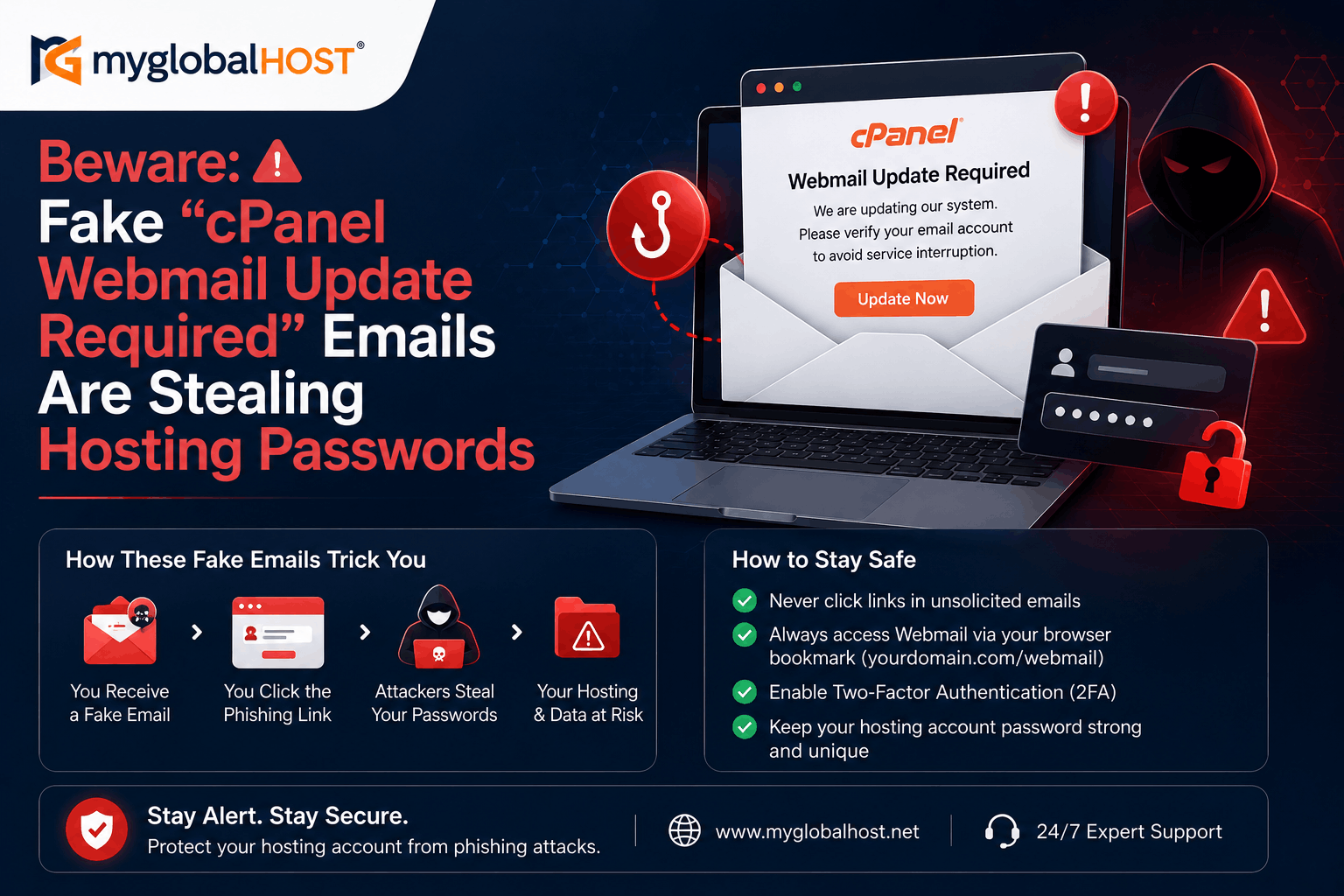
This Is Not About One Company. This Is About Every Hosting Customer on the Internet.
If you received an email telling you to “Update Webmail” or “Verify your email address to continue using cPanel” — stop. Do not click anything. Read this first.
These emails are one of the most widespread phishing scams targeting web hosting customers globally in 2026. They do not discriminate by hosting provider. They target customers of every hosting company — large and small, Indian and international. They have been circulating in various forms for years, and in June 2026, a new wave is hitting hosting customers across India and worldwide.
You did not receive this email because your hosting is insecure. You received it because attackers harvest email addresses from every available source — WHOIS domain registration records, website contact pages, data breaches, social media, and automated scanning tools. Every active email address on the internet is a potential target.
Your knowledge is your strongest defence. Understanding exactly how these scams work, what to look for, and what to do when one arrives is the most effective protection available — more effective than any spam filter, more effective than any security software, and completely free.
This guide gives you everything you need.
What These Fake Emails Look Like
The “cPanel Webmail Update Required” phishing email is one of the most convincing scam emails targeting hosting customers because it uses real cPanel branding and mimics the exact style of legitimate cPanel system notifications that hosting users receive regularly.
The email typically contains:
- From name displayed as: “cPanel” or “Webmail Support” or your hosting provider’s name
- Subject line: “Webmail Update Required” or “Action Required: Verify Your Webmail Account” or “Your cPanel Account Requires Verification”
- Body text: Something along the lines of — “To continue using your [your-email@yourdomain.com], please verify that this is your email address”
- A prominent button: Labelled “Update Webmail”, “Verify Now”, or “Confirm Email Address”
- A fake deadline: “Authentication request to expire on [date 2–3 days away] — You may lose access if no action is taken”
- Footer text: cPanel logos, copyright notices, or references to cPanel LLC to appear legitimate
Everything about the email is designed to look routine — as if it is just another standard system notification from your hosting control panel. That is precisely what makes it dangerous.
What it actually does: Clicking the button takes you to a fake login page — a meticulously crafted copy of the real cPanel Webmail interface — that records every character you type and transmits it directly to criminals the moment you click Login.
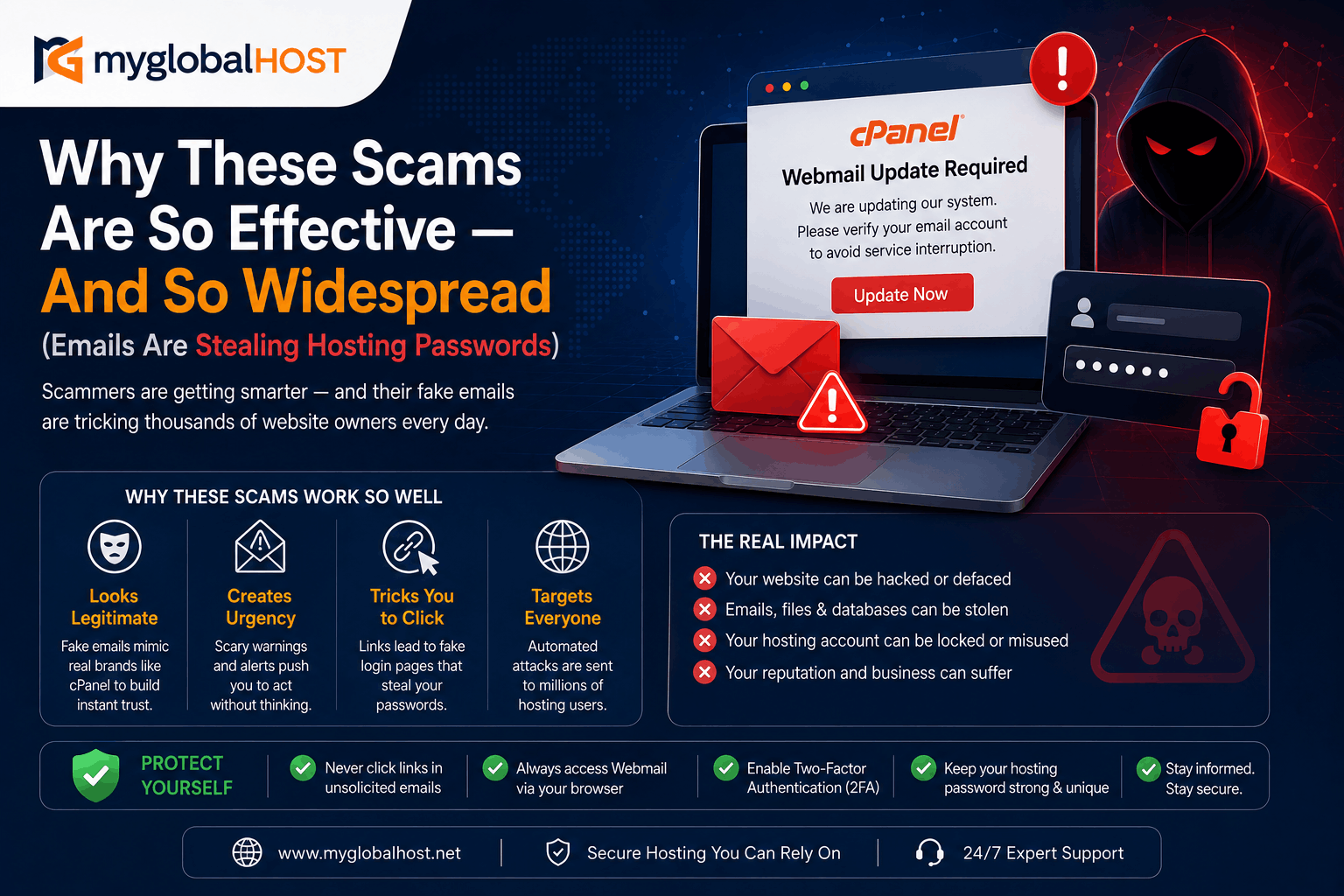
Part 1: Why These Scams Are So Effective — And So Widespread
Understanding the psychology behind these attacks makes them far easier to resist.
They Exploit Routine
Hosting customers receive genuine cPanel notification emails regularly — new account confirmations, SSL expiry warnings, backup completion notices, billing reminders. Attackers know this. They style their phishing emails to look identical to these routine notifications so that recipients treat them as just another system email to be quickly dealt with.
They Create Artificial Urgency
“You may lose access if no action is taken.” “Authentication request expires in 48 hours.” “Your account will be suspended.”
Fear of losing access to your website or email account is a powerful motivator for fast, unconsidered action. Legitimate systems that need you to verify something give you reasonable time and reference specific, verifiable account details. A generic expiry countdown attached to a vague “please verify” request is manufactured panic — a deliberate manipulation technique.
They Target Everyone at Once
These attacks are not targeted at you personally. Attackers send millions of these emails simultaneously to harvested email addresses. They do not know who you host with, what your plan is, or anything specific about your account. They simply send the same fake email to every address they have collected and wait for a percentage of recipients to click.
Email addresses are harvested from:
- WHOIS domain records — when you register a domain, your email is in a public database unless WHOIS privacy protection is enabled
- Website contact pages and footer email addresses — bots crawl every public-facing page on the internet collecting emails
- Data breaches from other services — if any other website you used has been breached, your email is in circulation on criminal databases
- Social media profiles — publicly listed email addresses on LinkedIn, Facebook, Twitter, and business directories
They Use Real Logos and Professional Design
Generic scam emails from ten years ago were easy to spot — broken English, obvious fake branding, suspicious attachments. Modern phishing emails are polished, professionally designed, and visually indistinguishable from the real thing. The cPanel logo, the colour scheme, the button style — all copied from genuine cPanel UI elements.
Part 2: Eight Ways to Spot a Fake Hosting Email Every Time
Train yourself on these eight signals. Together, they make phishing emails identifiable in under 30 seconds.
Signal 1 — Urgency With No Specific Account Reference
Genuine system emails from your hosting control panel reference specific, verifiable details about your account — your actual domain name, your specific expiry date, your account username. Phishing emails are generic. “Your account” is not specific. “Authentication expires soon” references nothing you can verify.
If an urgent email contains no specific, verifiable information about your actual account that you can independently confirm in your control panel — treat it as suspicious.
Signal 2 — The Email Asks You to Enter a Password via a Link
This is the single most reliable indicator of a phishing email, with no exceptions:
No legitimate hosting company, control panel software, or web application will ever ask you to verify your identity by clicking a link in an email and entering your password on the destination page.
Legitimate systems that need you to take action direct you to log in to your control panel independently — by typing the URL yourself — not by clicking a button in an email. If an email contains a login button that leads to a password field, regardless of how real it looks, it is a credential harvesting page.
Signal 3 — The Actual Sender Email Does Not Match the Display Name
Email clients display a “From name” that can be set to anything — “cPanel”, “Webmail Support”, your hosting company’s name. This display name is completely separate from the actual sending email address.
To check the real sender:
- On Gmail: Click the down arrow next to the sender’s name to expand full details
- On Outlook: Click the sender’s name to see the actual email address
- On Apple Mail: Hover over the sender name or right-click to view full headers
- On mobile: Tap the sender name/photo to expand full address details
A phishing email may display “cPanel” as the from name but the actual sending address will be something like no-reply@random-hosting-domain.xyz or cpanel-alert@unrelated-company.com. The display name is a costume — the actual email address is the identity.
Signal 4 — Hover Over the Link Before Clicking
On desktop, hover your mouse cursor over any button or link in a suspicious email without clicking. Your browser or email client will display the actual destination URL in the status bar at the bottom of the screen.
On mobile, long-press (hold your finger on) any link or button to see a preview of the destination URL before opening it.
What to look for:
- The URL should match your actual hosting provider’s domain exactly
- Watch for typosquatting — domains that look similar but are slightly wrong:
cpanel-secure.net,webmail-update.com,yourhost-verify.in - The domain immediately before
.com,.net,.in, or.orgin the URL is what matters —fake-cpanel.secure-login.comgoes tosecure-login.com, not to cPanel - Any URL containing words like “verify”, “secure”, “update”, “authentication” combined with a domain you do not recognise is suspicious
Signal 5 — Generic Greeting, No Account Specifics
Phishing emails address you generically: “Dear User”, “Dear Customer”, “Dear Email Account Holder”. Your actual hosting provider addresses you by your registered name or username. Legitimate cPanel system emails include your domain name and specific account details.
Signal 6 — No Way to Verify the Claim Independently
Every legitimate notification about your hosting account can be independently verified by logging into your control panel. SSL expiry? It shows in your cPanel SSL section. Billing issue? It shows in your client portal. Email quota exceeded? It shows in your cPanel Email Accounts section.
If an email makes a claim about your account that you cannot verify by logging into your control panel independently, that claim is almost certainly fabricated. The fabrication exists specifically to prevent you from taking the time to verify it — because verification would immediately reveal it as false.
Signal 7 — The Destination Page URL Is Not Your Hosting Provider’s Domain
If you do navigate to a page after clicking a suspicious link, check the URL in your browser’s address bar before entering anything. Your actual cPanel and Webmail are accessed at:
https://yourdomain.com/cpanelhttps://yourdomain.com:2083https://yourdomain.com/webmailhttps://yourdomain.com:2096
Any other URL asking for your cPanel or Webmail credentials is not your actual control panel. Note that even HTTPS does not guarantee legitimacy — phishing sites commonly obtain free SSL certificates — but http:// without a padlock is an immediate red flag.
Signal 8 — You Were Not Expecting Any Action
The strongest protection against phishing is simply asking yourself: “Did I initiate anything that would require this response?” Did you request a password reset? Did you submit a support ticket? Did you make a billing change?
Unsolicited action requests that you did not initiate — especially those requiring you to click a link and log in — deserve immediate scrutiny regardless of how real they look.
Part 3: What Happens If You Click — The Full Attack Chain
Understanding what attackers do once they have your credentials explains why fast action after a phishing click is so critical.
Stage 1 — Credential Capture (Instant)
You click the button. You see a convincing fake login page. You type your email password. The moment you click “Login” or “Verify,” your credentials are transmitted to the attacker’s server — before you even see an error message or fake success screen.
Stage 2 — Email Account Access (Within Minutes)
With your email password, attackers log into your actual Webmail account. They immediately:
- Read and download your email history — business communications, order confirmations, bank statements, client correspondence
- Use your email as a trusted identity to reset passwords for every linked account
- Set up silent email forwarding rules to copy all future incoming email to their own accounts
- Delete evidence of the forwarding setup from your account settings
Stage 3 — Account Escalation (Within Hours)
Using password reset emails sent to your now-compromised inbox, attackers systematically attempt to access:
- Your domain registrar account (to transfer your domain away from you)
- Your payment processors and banking via reset emails
- Your social media accounts
- Your business tools — Slack, Trello, Google Workspace, Dropbox
- Any account where that email address was used for registration
Stage 4 — Hosting Account Takeover (If cPanel Credentials Were Also Captured)
If the phishing page prompted for your cPanel credentials as a second step:
- All websites on the account are accessible and modifiable
- All databases — including customer data, WooCommerce order histories, user accounts — are accessible
- Malware, backdoors, and spam-sending scripts can be installed across all sites
- All email accounts on the domain can be accessed
Stage 5 — Persistent Access and Identity Abuse
Sophisticated attackers install persistent backdoors before changing anything visible, ensuring they retain access even after you change your passwords. They may:
- Impersonate you in emails to your clients requesting urgent payments or sensitive information
- Use your email identity to spread further phishing to your contacts
- Hold your domain or website data for ransom
Work accounts compromised through these phishing attacks are frequently used to infect business networks with trojans and ransomware through subsequent malicious emails sent from the now-trusted compromised account.
Part 4: I Clicked and Entered My Password — Do This Immediately
Every minute matters. Work through this list in order without stopping.
Step 1 — Change Your Email Password RIGHT NOW
Log in to your cPanel by typing your domain’s cPanel URL directly into your browser — not through any link in any email. Go to Email Accounts → find the affected email address → Manage → change the password immediately to a completely new, strong password (16+ characters, never used before anywhere).
Step 2 — Change Your cPanel Password
Still in cPanel, click your username in the top-right corner → Password & Security → change your cPanel login password immediately.
Step 3 — Change Your Hosting Client Portal Password
Go directly to your hosting provider’s client portal by typing its URL manually. Change your billing and account management password to something completely new.
Step 4 — Audit Your Email for Forwarding Rules
Open Webmail and go to your email settings or filters section. Look for any forwarding rules or redirect rules that were not set up by you. Delete all of them immediately. Also check whether your recovery or alternate email address has been changed.
Step 5 — Review Your Sent Folder
Check your Sent folder for emails you did not write. If attackers sent emails impersonating you, contact the recipients immediately to warn them the emails were fraudulent.
Step 6 — Check Website Files for Malware
If you believe cPanel credentials were also compromised, use cPanel’s File Manager to review recently modified files in your website directories. Sort by modification date and look for anything changed around the time of the phishing click that you did not intentionally modify. Run malware scans on all WordPress installations immediately.
Step 7 — Restore from a Clean Backup
If there is any doubt about file integrity, restore your website from a backup taken before the phishing event. Keep regular, current backups at all times — this is your ultimate recovery mechanism.
Step 8 — Contact Your Hosting Provider’s Support
Raise an urgent support ticket with your hosting provider, inform them you believe your account may have been compromised, and ask them to:
- Review access logs for unauthorised logins
- Check for recently uploaded malicious files
- Assist with account integrity verification
Act quickly — your hosting provider’s support team is your best resource for identifying damage and restoring account security.
Part 5: Permanent Protection — Make Your Account Phishing-Resistant
Use Unique Passwords for Every Account
The most catastrophic consequence of phishing is credential reuse. If you use the same password for your email, hosting control panel, domain registrar, and banking, one stolen password unlocks your entire digital life. Use a password manager — Bitwarden (free), 1Password, or your browser’s built-in password manager — to generate and store unique passwords for every account.
Enable Two-Factor Authentication (2FA) Everywhere
Two-factor authentication means that even if your password is stolen, an attacker cannot log in without the time-sensitive code generated on your physical phone. Enable 2FA on:
- Your hosting client portal
- Your cPanel account (Settings → Two-Factor Authentication)
- Your domain registrar
- Your email accounts
- Your payment and banking accounts
With 2FA enabled, a phished password is useless to an attacker without physical access to your phone.
Enable WHOIS Privacy on Your Domain
If your domain registration does not have WHOIS privacy protection enabled, your email address is publicly accessible in the global WHOIS database — one of the primary sources attackers use to harvest hosting customer email addresses. Enable WHOIS privacy protection through your domain registrar to mask your email from public records.
Bookmark Your Login Pages — Never Follow Email Links
Create permanent bookmarks in your browser for your hosting control panel, client portal, and Webmail. Access them exclusively through these bookmarks. Never access your hosting accounts by clicking links in emails — regardless of how legitimate the email appears.
Use Email Filtering and Spam Rules
Configure aggressive spam filtering on your email account through your hosting control panel’s spam filter settings (SpamAssassin on cPanel). Enable greylisting, SPF checking, and DKIM validation to reduce the volume of spoofed emails that reach your inbox.
Keep Your Contact Email Address Private
Where possible, avoid publicly listing your hosting account’s email address on your website or social media. Use a dedicated contact form for public enquiries, and keep the actual email address associated with your hosting account private.
Check Your Account Regularly
Log in to your hosting client portal and cPanel regularly — not in response to emails, but proactively. Review active sessions, check email forwarding settings, and audit file modification dates. Regular proactive checks catch anomalies before they become disasters.
Take Regular Backups
A recent clean backup is your most powerful recovery tool. Set up automated backups through your hosting control panel and download copies to local storage periodically. Having a backup from before any compromise allows complete restoration regardless of what attackers modified.
Part 6: How to Report a Phishing Email
If you receive a phishing email targeting hosting customers:
1. Do not forward it to contacts — forwarding spreads the phishing link to more potential victims
2. Mark it as phishing/spam in your email client — training spam filters protects other users
3. Report it to your email provider — Gmail, Outlook, Apple Mail all have “Report Phishing” options that help block the sending infrastructure
4. Report the phishing URL to Google — visit https://safebrowsing.google.com/safebrowsing/report_phish/ and submit the fake URL. Google’s Safe Browsing service will then warn other users who encounter the link
5. Report to CERT-In (India) — India’s Computer Emergency Response Team accepts phishing reports at https://www.cert-in.org.in. Reporting helps national authorities track and take action against phishing campaigns targeting Indian users
6. Contact your hosting provider — inform their support team so they can monitor for account compromise attempts and alert other customers
7. Report to cPanel — if the email specifically impersonates cPanel, forward it to security@cpanel.net so their security team can investigate
The Three Rules to Remember Forever
Rule 1 — No legitimate service will ever ask for your password via email. Not your hosting company. Not cPanel. Not Google. Not your bank. Not anyone. Password requests via email links are always phishing attempts, with no exceptions.
Rule 2 — Urgency in an email is a manipulation tactic, not a real emergency. Real account issues can be verified by logging into your control panel directly. If something is genuinely wrong with your account, you will see it there. No legitimate problem requires you to act in 48 hours via an email link.
Rule 3 — When in doubt, go directly to the source. Never click email links to access important accounts. Type the URL. Open the bookmark. Check your account directly. If there is a genuine issue, it will be visible in your dashboard. If there is no issue visible in your dashboard, the email that claimed there was one is fraudulent.
Your account security is entirely within your control — and it starts with knowing exactly what to look for.
Related Knowledge Base Articles
Security and Account Protection
- How to Install CSF Firewall in WHM/cPanel
- How to Configure CSF in WHM/cPanel for Maximum Security
- Auto Block Attackers with Imunify360 and LiteSpeed WHM
- Auto Block Attackers with CSF and LiteSpeed WHM
- How to Stop Bad Bots in WordPress via Plugin
- Stop Bad Bots in cPanel/WHM Using ModSecurity
Email and Account Management
- How to Create an Email Account in cPanel
- How to Login to cPanel at myglobalHOST
- WordPress SMTP Setup Guide
- How to Configure Webmail Email on Your Mobile Device
- How to Configure Webmail Email on Your PC/Laptop
Backup and Recovery
- How to Take a Full Account Backup in cPanel Manually
- How to Backup MySQL Databases with Mysqldump
- 5 Life-Saving Tricks for cPanel File Manager
Support
This article is part of the myglobalHOST Knowledge Base — practical security guides written to help hosting customers protect their accounts, websites, and data.


