
Search for the Solution?
How to Migrate WordPress to a New Hosting Provider
How to Migrate WordPress to a New Hosting Provider: Zero Downtime Guide (2026)
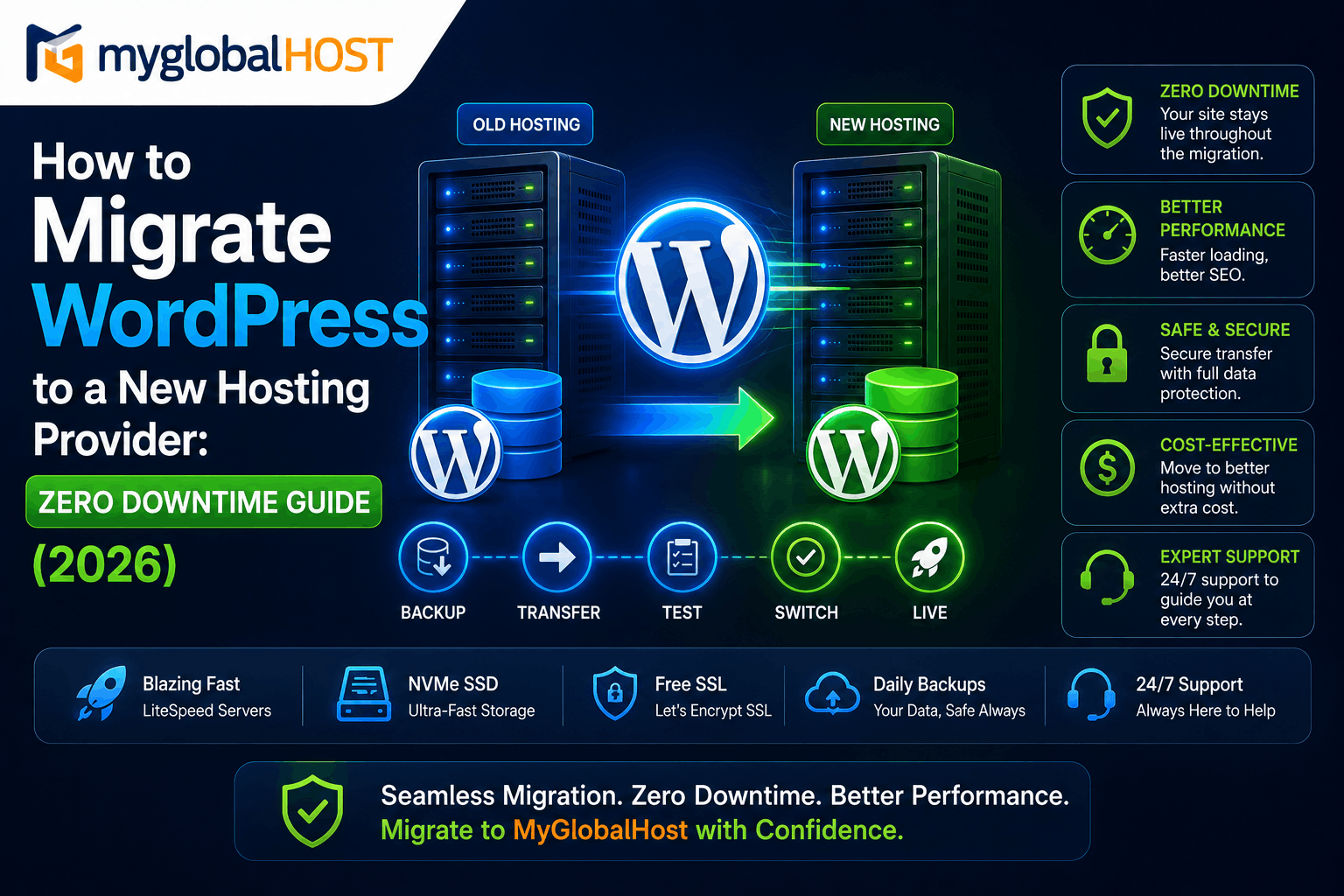
Why People Migrate WordPress Hosting — And Why They Are Afraid To
The most common reasons Indian website owners decide to migrate WordPress hosting in 2026:
- Current hosting runs Apache — LiteSpeed is significantly faster and they want Core Web Vitals improvement
- Renewal price spike after Year 1 — Hostinger renewing at ₹289–₹649/month after a ₹69–₹249/month first year
- Website going down during traffic spikes — Apache saturating under concurrent load
- Slow TTFB causing poor Google rankings — hosting infrastructure failing Core Web Vitals
- Poor support response — no WhatsApp, no Hindi, no response within reasonable hours
- Moving to NVMe storage — switching from SATA SSD to NVMe for WooCommerce performance
The fear of migrating is almost always larger than the migration itself. With the right process, you can migrate your content with no downtime or data loss — just a smooth transition to better performance. Most WordPress migrations take between 30 minutes and 3 hours depending on method and site size.
This guide gives you the complete, step-by-step process using the manual cPanel backup method — the most reliable, universally compatible approach that works between any two cPanel hosts. Zero downtime is achievable when you complete the full transfer and verification on the new host before changing DNS.
Before You Start: The Pre-Migration Checklist (48 Hours Before)
A failed migration is almost always caused by skipping preparation. Complete every item below before touching a single file.
✅ 48 Hours Before Migration
1. Lower your DNS TTL to 300 seconds
DNS TTL (Time to Live) is how long DNS resolvers cache your IP address before checking for updates. The default is often 86,400 seconds (24 hours). If you switch DNS while TTL is 24 hours, some visitors will see the old server for an entire day.
Fix: Log in to wherever your domain’s DNS is managed (your domain registrar, Cloudflare, or your current host’s cPanel → Zone Editor). Find the A record for your domain. Change the TTL from 86400 to 300 (5 minutes). Wait 24–48 hours for this TTL reduction to propagate before doing anything else.
DNS management guide: How to Add, Edit and Manage DNS in cPanel
2. Record your baseline performance
Run your current site through Google PageSpeed Insights (pagespeed.web.dev) and GTmetrix (test from Mumbai). Record your TTFB, LCP, and PageSpeed scores. After migration, you will use these numbers to verify the new host is genuinely faster.
3. Document your current environment
Write down:
- WordPress version: Dashboard → About WordPress
- PHP version: Dashboard → Tools → Site Health → Info → Server
- Active theme name and version
- Active plugin names and versions
- WordPress site URL and WordPress address (Dashboard → Settings → General)
- Any custom
wp-config.phpadditions (search fordefine(statements beyond defaults) - Custom cron jobs configured in cPanel
4. Verify PHP compatibility before migrating
This is the #1 cause of WordPress migration failures. If your current host runs PHP 7.4 and your new host runs PHP 8.3, plugins that are incompatible with PHP 8.x will break your site immediately after migration.
Check compatibility: Dashboard → Tools → Site Health → Status tab. If any plugins show PHP compatibility warnings, update or replace them before migrating. Do this on your current host — it is much simpler than debugging a broken site on a new host.
5. Take a full backup of your current site
Even though migration is safe when done correctly, a backup removes all risk. Download a full cPanel backup from your current host: How to Take a Full Account Backup in cPanel Manually
Store this backup locally on your computer — not just on the server. If anything goes wrong mid-migration, you can restore your current host to this backup and start again without any data loss.
The Migration Overview — What You Are Actually Doing
Understanding the process removes the anxiety. Here is what a WordPress migration is, at its core:
Current Server                    New Server
[WordPress Files] ──copy──────▶  [WordPress Files]
[MySQL Database]  ──export/import [MySQL Database]
[wp-config.php]   ──update────▶  [wp-config.php]
[DNS: yoursite.com → Old IP]      [DNS: yoursite.com → New IP]
                                         ↑
                       You change this LAST, after testing
The zero-downtime principle: Your old server keeps running normally throughout the entire migration. You set up a complete copy of your site on the new server. You test it using your local hosts file. When you are 100% satisfied the new site works correctly, you update DNS. Your site never goes offline.
Phase 1 — Set Up Your New Hosting Account on myglobalHOST
Step 1.1 — Purchase Your Plan
Choose the right plan based on your site’s needs:
- Blog or business website: Web Hosting MYLT-2 at ₹154/month — 5 websites, 10 GB SSD, unlimited email, LiteSpeed Enterprise
- WooCommerce store: Cloud Hosting MYW-P1 at ₹156/month — 5 GB NVMe, auto-scaling, WhatsApp plugins
- Multiple client sites: Reseller Hosting with WHM
Purchase guide: How to Purchase a Shared Hosting Plan
Step 1.2 — Access Your New cPanel
After purchase, access cPanel through your Client Dashboard at members.myglobalhost.in → Services → click your plan → Log in to cPanel.
Full guide: How to Login to cPanel at myglobalHOST
Step 1.3 — Note Your New Server IP Address
In cPanel, look for the “Shared IP Address” in the General Information box on the right side of the cPanel home screen. Write this down — you need it for the hosts file test in Phase 3.
Step 1.4 — Create a MySQL Database and User
In cPanel → Databases → MySQL Databases:
- Create New Database — name it (e.g.,
migration_db) - Create New User — set a strong password
- Add User to Database — grant ALL PRIVILEGES
Write down the database name, username, and password — you need these when configuring wp-config.php.
Alternatively, if you are restoring a full cPanel backup (see Phase 2, Option A), this step is handled automatically.
Phase 2 — Transfer Your WordPress Files and Database
You have two options. Choose based on your site size and technical comfort level.
Option A — Full cPanel Backup Restore (Fastest and Most Complete)
Best for: Sites on any cPanel host migrating to myglobalHOST. Transfers everything — files, databases, email accounts, DNS records, cron jobs — in one step.
Step A1 — Download your full cPanel backup from your current host
Log in to your current cPanel → Files → Backup → Generate/Download a Full Account Backup. Select “Home Directory” as the backup destination and click Generate Backup.
When the backup completes (email notification), go back to Backup → download the .tar.gz file to your computer.
Step A2 — Upload the backup to myglobalHOST
Option 1 (Ticket-based): Raise a support ticket via members.myglobalhost.in or WhatsApp at +91-79862-84663. Our team can restore a cPanel backup directly at the server level.
Option 2 (Self-service via cPanel): In your new myglobalHOST cPanel → Files → Backup → Restore a Full Backup / cpmove file.
Step A3 — Verify the restoration
After restoration, check that all files appear in cPanel File Manager under public_html, all databases are visible in MySQL Databases, and email accounts are restored in Email Accounts.
Option B — Manual Migration (Step by Step — Works from Any Host)
Use this method if you cannot download a full cPanel backup from your current host (e.g., if they use hPanel, DirectAdmin, or a proprietary panel like Hostinger’s).
Step B1 — Export Your Database from the Current Host
Method 1 — phpMyAdmin (Most Common):
- Log in to current cPanel → Databases → phpMyAdmin
- In the left sidebar, click your WordPress database
- Click Export tab → Export Method: Quick → Format: SQL → Go
- Save the
.sqlfile to your computer
Method 2 — cPanel Backup → MySQL Databases: cPanel → Files → Backup → Download a MySQL Database Backup → select your WordPress database.
Method 3 — WP-CLI via SSH (Large Sites):
wp db export backup.sql --add-drop-table
Then download backup.sql via FTP or cPanel File Manager.
For large databases (over 500 MB): If phpMyAdmin times out during export, use SSH: mysqldump -u username -p database_name > backup.sql
Database backup guide: How to Backup MySQL Databases with Mysqldump
Step B2 — Download All WordPress Files from Current Host
Method 1 — FTP/SFTP (FileZilla): Connect using your FTP credentials → navigate to public_html → select all files → download to a local folder.
Method 2 — cPanel File Manager: cPanel → Files → File Manager → navigate to public_html → select all → Compress to .zip → Download the zip file.
Method 3 — cPanel Backup (Partial): cPanel → Files → Backup → Download a Home Directory Backup.
Step B3 — Upload WordPress Files to myglobalHOST
In your new myglobalHOST cPanel File Manager:
- Navigate to
public_html - Delete the default cPanel placeholder
index.htmlif present (right-click → Delete) - Upload your WordPress zip file
- Right-click the zip → Extract → extract to
public_html
Alternatively, connect via FTP to your new myglobalHOST account and upload all files directly.
File Manager guide: 5 Life-Saving Tricks for cPanel File Manager
Step B4 — Import Your Database on myglobalHOST
In myglobalHOST cPanel → Databases → phpMyAdmin:
- Click on your newly created database in the left sidebar
- Click Import tab
- Click Choose File → select your
.sqlfile - Click Go
If the import fails due to file size limits: Use SSH method: mysql -u username -p database_name < backup.sql
Or increase the PHP upload limit temporarily via cPanel → Select PHP Version → PHP Options → upload_max_filesize and post_max_size.
For very large databases (over 1 GB): Split the SQL file using BigDump or import via SSH command line.
Repair database guide: Repair and Optimise MySQL Database on cPanel/WHM Server
Step B5 — Update wp-config.php on the New Host
Your wp-config.php file contains the database connection details that are specific to your old host. These must be updated to match your new myglobalHOST database.
In cPanel File Manager → navigate to public_html → right-click wp-config.php → Edit.
Find and update these four lines:
define( 'DB_NAME', 'your_new_database_name' );
define( 'DB_USER', 'your_new_database_username' );
define( 'DB_PASSWORD', 'your_new_database_password' );
define( 'DB_HOST', 'localhost' );
Replace with the credentials from the database you created in Step 1.4. DB_HOST should remain localhost on most cPanel hosts including myglobalHOST.
Save the file.
Phase 3 — Test Your Site on the New Server (The Zero-Downtime Key)
This phase is what separates a zero-downtime migration from one that risks your live site. Do not change DNS until this phase is complete and you are 100% satisfied.
Step 3.1 — Set PHP Version to Match Your Current Host
In myglobalHOST cPanel → Software → MultiPHP Manager → select your domain → choose the same PHP version your current host uses. You can upgrade to PHP 8.3 after verifying everything works on the new server — do not change PHP version during migration.
Step 3.2 — Install SSL Certificate on the New Host
Before testing, ensure your domain has an SSL certificate on the new server.
In myglobalHOST cPanel → Security → SSL/TLS → Run AutoSSL. This provisions a free Let’s Encrypt certificate for your domain. Even though your domain’s DNS still points to the old host, AutoSSL can issue a certificate via the domain’s validation path.
SSL guide: How to Install and Activate SSL in cPanel Hosting
Step 3.3 — Edit Your Local Hosts File to Test the New Site
This is the definitive technique for zero-downtime migration testing. The hosts file on your computer tells your browser which IP address to use for a domain — overriding DNS. This means you can browse your site on the new server while your live site continues serving visitors from the old server normally.
On Windows:
- Open Notepad as Administrator (right-click → Run as administrator)
- Open file:
C:\Windows\System32\drivers\etc\hosts - Add this line at the bottom:
123.456.789.000 yoursite.com www.yoursite.com(Replace
123.456.789.000with your new myglobalHOST server IP from Step 1.3, andyoursite.comwith your actual domain) - Save the file
On Mac:
- Open Terminal
- Run:
sudo nano /etc/hosts - Add the same line at the bottom
- Press Ctrl+X → Y → Enter to save
On Linux:
- Run:
sudo nano /etc/hosts - Add the line, save and exit
After adding the hosts entry: Open your browser and visit https://yoursite.com. You will now see your site served from the new myglobalHOST server while your live visitors continue seeing the site on the old server — zero impact on live visitors.
⚠️ Important: Clear your browser cache before testing. In Chrome: Settings → Privacy → Clear browsing data → Clear cache.
Step 3.4 — Thorough Testing Checklist on New Server
With your hosts file pointing to the new server, test everything:
Visual and functional tests:
- ✅ Homepage loads correctly with images, layout, and fonts
- ✅ Navigate to 3–5 internal pages — no 404 errors
- ✅ Blog post pages render correctly
- ✅ Contact form submits successfully (test SMTP: WordPress SMTP Setup Guide)
- ✅ Image gallery pages load all images
- ✅ Search function works
WooCommerce specific (if applicable):
- ✅ Product pages display correctly
- ✅ Add to cart works
- ✅ Checkout page loads (critical: requires SSL — verify padlock shows)
- ✅ Payment gateway test mode checkout completes
- ✅ Order confirmation email received
Full WooCommerce migration guide: Understanding WooCommerce Hosting Requirements
Technical tests:
- ✅ WordPress admin dashboard loads at
yoursite.com/wp-admin - ✅ All plugins active and functioning
- ✅ Theme displaying correctly without CSS errors (check browser console)
- ✅ HTTPS padlock shows — no mixed content warnings
Performance tests (with hosts file active):
- ✅ Run GTmetrix from Mumbai — compare TTFB to your baseline
- ✅ If TTFB is lower on the new server, the migration is improving performance
Fix any issues found: If something is broken, debug it now — on the new server with your hosts file entry active — before touching DNS.
Step 3.5 — Enable LiteSpeed Cache on the New Server
Once testing is successful, configure LiteSpeed Cache on the new myglobalHOST server:
- In WordPress Dashboard (on the new server, accessed via hosts file) → Plugins → LiteSpeed Cache → Activate
- cPanel → LiteSpeed Web Cache Manager → Enable for your domain
- Configure per the full guide: How to Set Up LiteSpeed Cache in cPanel for WordPress
Run GTmetrix again after LiteSpeed Cache is active. Your TTFB should drop to under 200ms — significantly lower than your old host’s baseline.
Step 3.6 — Remove the Hosts File Entry When Done Testing
After you are fully satisfied with testing, remove the line you added to your hosts file. This restores your computer to normal DNS resolution before you change DNS in Phase 4.
Windows: Open C:\Windows\System32\drivers\etc\hosts as Administrator → delete the line you added → Save.
Mac/Linux: sudo nano /etc/hosts → delete the line → Ctrl+X → Y → Enter.
Phase 4 — Switch DNS to the New Host (The Point of No Return)
You have a working copy of your site on the new server, you have tested it thoroughly, and you are confident. Now you switch DNS.
Understanding DNS Propagation in 2026
DNS propagation is the period after you update your nameservers or A record during which different DNS resolvers worldwide catch up to the change. In 2026, with modern TTL settings, propagation typically takes 1–4 hours after your TTL change from 48 hours earlier. Most resolvers update within this window. Some slower resolvers may take up to 48 hours — this is why you lowered the TTL 48 hours ago.
During propagation: Some visitors see the old server. Some see the new server. This is normal and unavoidable. Both servers should remain active and serving your site until propagation is complete. With proper preparation (lowering DNS TTL, testing thoroughly), downtime is minimal or zero.
Step 4.1 — Choose Your DNS Update Method
Method A — Change Nameservers (If Domain Is at a Registrar): Most straightforward. In your domain registrar (GoDaddy, BigRock, Namecheap, etc.):
- Find your domain → Nameservers settings
- Replace current nameservers with myglobalHOST nameservers: Where to Find myglobalHOST Nameservers
This transfers all DNS management to myglobalHOST’s DNS servers.
Method B — Update A Record Only (Keep DNS Elsewhere): If you want to keep DNS management at Cloudflare or your current registrar:
- Find the A record for your domain (and
www.yourdomain.com) - Change the IP address to your new myglobalHOST server IP (from Step 1.3)
- With your TTL already at 300 seconds, this propagates in ~5–30 minutes
Step 4.2 — Monitor DNS Propagation
Use myglobalHOST’s free DNS Checker — enter your domain and verify when the IP address shows your new myglobalHOST server IP across different global locations.
Alternatively use whatsmydns.net — search your domain → check that green checkmarks appear for your new server IP.
Step 4.3 — Keep Both Servers Running
Do not cancel your old hosting until DNS has fully propagated globally. While propagation is in progress, some visitors are still being served by your old server. If you cancel the old hosting during propagation, those visitors see errors. Keep the old hosting active for at least 24–48 hours after switching DNS.
Phase 5 — Post-Migration Checks and Optimisation
DNS has propagated. All visitors are now being served by your new myglobalHOST server. These are the final verification and optimisation steps.
Step 5.1 — Verify SSL on the Live Domain
Now that DNS points to myglobalHOST, AutoSSL can properly validate and issue your SSL certificate. Check:
- cPanel → Security → SSL/TLS → Manage SSL Sites — your domain should show a valid certificate
- Visit your site in browser — padlock should show in the address bar
- If mixed content warnings appear: Force HTTPS Using .htaccess
Step 5.2 — Run a Full Post-Migration Audit
Technical verification:
- ✅ Crawl your site with Screaming Frog or a free crawler — check for 404 errors, redirect chains, and missing images
- ✅ Check
.htaccess— if sub-pages return 404 while homepage works, your permalink structure needs regenerating: WordPress → Settings → Permalinks → Save Changes (this regenerates.htaccess) - ✅ Check all forms send emails correctly
- ✅ Verify no “insecure connection” warnings — use Why No Padlock to find mixed content
Performance verification:
- ✅ Run PageSpeed Insights — compare to your pre-migration baseline
- ✅ Run GTmetrix from Mumbai — verify TTFB is under 200ms (vs your old host’s 400–800ms)
- ✅ Check Core Web Vitals in Google Search Console (Experience → Core Web Vitals)
Step 5.3 — Configure Professional Email
If your email accounts were transferred via the cPanel backup restore (Option A), they continue working automatically. If you migrated manually (Option B), you need to recreate email accounts:
Create email accounts: How to Create an Email Account in cPanel
Configure on mobile: How to Configure Webmail Email on Your Mobile Device
Configure on PC: How to Configure Webmail Email on Your PC/Laptop
Configure SMTP for reliable WordPress email: WordPress SMTP Setup Guide
Step 5.4 — Upgrade to PHP 8.3
Now that your site is live on myglobalHOST and verified to work correctly, upgrade to PHP 8.3:
- cPanel → Software → MultiPHP Manager → select domain → PHP 8.3 → Apply
- Check Dashboard → Tools → Site Health for any PHP 8.3 warnings
- PHP 8.3 delivers approximately 23% higher WordPress throughput than PHP 7.4
Enable OPcache: How to Enable OPcache in cPanel
Step 5.5 — Take a Baseline Backup of Your New Account
Your first backup on myglobalHOST is your migration completion confirmation. Download it and store it externally:
How to Take a Full Account Backup in cPanel Manually
Step 5.6 — Cancel Your Old Hosting
Only after:
- ✅ DNS has fully propagated globally (verified via DNS checker)
- ✅ All email is working on myglobalHOST
- ✅ Site is fully functional on new server
- ✅ You have a backup of your myglobalHOST account
- ✅ At least 48–72 hours have passed since DNS switch
Then cancel your old hosting. If you prepaid and have time remaining, check your old host’s refund policy.
Special Case: Migrating FROM Hostinger hPanel to myglobalHOST cPanel
If you are migrating from Hostinger (which uses hPanel instead of cPanel), the process requires some additional manual steps because hPanel does not generate standard cPanel backup files.
The hPanel Export Process
Step 1 — Export files from hPanel: hPanel → Files → File Manager → select all files in public_html → Compress → Download the zip.
Step 2 — Export database from hPanel: hPanel → Databases → phpMyAdmin → select your WordPress database → Export → SQL format → Go → Save.
Step 3 — Get your database connection details: hPanel → Databases → MySQL Databases → note your database name, username, password, and host. Hostinger databases often use a non-localhost hostname (like mysql.hostg.in) — your myglobalHOST database uses localhost.
Step 4 — Migrate to myglobalHOST: Follow Phase 2 Option B above — upload files, import database, update wp-config.php with new myglobalHOST database credentials including changing DB_HOST from Hostinger’s hostname to localhost.
Why hPanel migration is more complex: hPanel exports are in a non-standard format. There is no one-click cPanel restore. The process requires: downloading the backup, extracting files manually, uploading to the correct directories, separately exporting and importing each database, manually recreating email accounts, and updating DNS records. Contact myglobalHOST support via WhatsApp at +91-79862-84663 if you need migration assistance.
For context on why cPanel’s portability matters: cPanel vs hPanel: Which is Better for Indian Users?
Common Migration Problems and How to Fix Them
Problem 1 — White Screen of Death After Migration
Cause: PHP version mismatch between old and new host, or a plugin incompatible with the new PHP version.
Fix:
- Check PHP version in cPanel → MultiPHP Manager — ensure it matches your old host’s version
- Enable WordPress Debug: in
wp-config.phpadddefine('WP_DEBUG', true);anddefine('WP_DEBUG_LOG', true);— check/wp-content/debug.logfor the actual error - Deactivate all plugins via FTP (rename
/wp-content/pluginsto/wp-content/plugins_bk) — if site loads, reactivate plugins one by one to find the culprit
Problem 2 — 404 Errors on All Pages Except Homepage
Cause: .htaccess not properly configured or missing on the new server.
Fix: Log in to WordPress admin → Settings → Permalinks → click Save Changes (without changing anything). This regenerates the .htaccess file with the correct WordPress rules. If you do not have access to the admin, create a new .htaccess manually in public_html with the default WordPress content:
# BEGIN WordPress
<IfModule mod_rewrite.c>
RewriteEngine On
RewriteBase /
RewriteRule ^index\.php$ - [L]
RewriteCond %{REQUEST_FILENAME} !-f
RewriteCond %{REQUEST_FILENAME} !-d
RewriteRule . /index.php [L]
</IfModule>
# END WordPress
Problem 3 — WordPress Site URL Showing Old Hosting IP or Wrong URL
Cause: WordPress site URL is stored in the database and may have retained old values.
Fix: In phpMyAdmin → your database → wp_options table → find siteurl and home rows → click Edit → update both to https://yoursite.com → Go.
Or via WP-CLI: wp option update siteurl 'https://yoursite.com' and wp option update home 'https://yoursite.com'
Problem 4 — Images Not Loading (Broken Image Icons)
Cause: Images were not fully transferred, or the uploads directory permissions are incorrect.
Fix:
- Verify
/wp-content/uploads/exists and contains your images via cPanel File Manager - Check file permissions: the
uploadsdirectory should be 755 and files should be 644 - In cPanel File Manager → select
uploadsfolder → Change Permissions → 755
Problem 5 — Emails Not Sending After Migration
Cause: WordPress’s default wp_mail() function uses the local mail server which may not be configured or may have deliverability issues on the new host.
Fix: Configure SMTP: WordPress SMTP Setup Guide
Problem 6 — Mixed Content Warnings (Padlock Shows “Not Secure” or Warning)
Cause: Some URLs in your database or theme files still reference http:// instead of https://.
Fix: Run the Better Search Replace plugin to find and replace http://yoursite.com with https://yoursite.com across the entire database. Or enable SSL redirect: Force HTTPS Using .htaccess
Problem 7 — WooCommerce Cart or Checkout Not Working
Cause: LiteSpeed Cache caching the cart or checkout page, causing session issues.
Fix: Configure LiteSpeed Cache WooCommerce exclusions — cart, checkout, and My Account pages must be excluded from caching: Fixing Compatibility Issues Between LiteSpeed Cache and WooCommerce
The Complete Migration Timeline
| Time Before Migration | Action |
|---|---|
| T-48 hours | Lower DNS TTL to 300 seconds |
| T-48 hours | Run PHP compatibility check on current site |
| T-48 hours | Take full backup of current site |
| T-24 hours | Set up new myglobalHOST account |
| T-24 hours | Create MySQL database on new host |
| T-0 | Export database from current host |
| T-0 | Download all WordPress files |
| T+30 min | Upload files and import database to new host |
| T+45 min | Update wp-config.php on new host |
| T+1 hour | Edit local hosts file to test new site |
| T+1 hour | Test all pages, forms, and functions |
| T+1.5 hours | Enable LiteSpeed Cache on new host |
| T+1.5 hours | Run GTmetrix — confirm TTFB improvement |
| T+2 hours | Remove hosts file entry |
| T+2 hours | Update DNS (change nameservers or A record) |
| T+4 hours | Monitor DNS propagation |
| T+24 hours | Verify SSL is active on live domain |
| T+24 hours | Run full post-migration audit |
| T+48 hours | Cancel old hosting |
Frequently Asked Questions
How long does WordPress migration take? Most WordPress migrations take between 30 minutes and 3 hours depending on the method and site size. A typical blog or business website under 5 GB usually completes in under an hour. The DNS propagation period adds 1–4 hours in 2026 with modern TTL settings, but your site remains accessible throughout on at least one server during that window.
Does migrating WordPress affect SEO? No — if done correctly. Keep the same URLs, permalink structure, and content. A zero-downtime migration with proper DNS cutover means search engines continue to access your site throughout the process. After migration, your new LiteSpeed hosting should improve TTFB and Core Web Vitals, which positively affects rankings.
Is it possible to migrate WordPress without downtime? Yes — with proper preparation, downtime is minimal or zero. The key is completing the full transfer and verification on the new host before changing DNS. During DNS propagation, visitors are served by whichever server their DNS cache points to (old or new), so both servers should remain active until propagation is complete.
Can I migrate WordPress from Hostinger to myglobalHOST? Yes, but it requires more manual steps than a cPanel-to-cPanel migration because Hostinger uses hPanel instead of cPanel. The migration involves manually exporting files and database from hPanel, updating wp-config.php with new database credentials, and recreating email accounts. Contact myglobalHOST support via WhatsApp at +91-79862-84663 for migration assistance.
Will my email accounts transfer automatically? If you use Option A (full cPanel backup restore), email accounts, email history, and configuration transfer automatically. If you use Option B (manual migration), email accounts must be recreated manually in myglobalHOST cPanel.
How do I know if DNS has fully propagated? Use myglobalHOST’s free DNS Checker — enter your domain name and verify the IP address shows your new myglobalHOST server IP across multiple global locations.
What if something goes wrong during migration? Your old hosting is still running normally throughout the migration process — you have not changed DNS yet. Simply fix the issue on the new server before proceeding. Your live site is unaffected. This is why “test before switching DNS” is the central principle of zero-downtime migration.
Related Knowledge Base Articles
Migration Essentials
- How to Take a Full Account Backup in cPanel Manually
- How to Backup MySQL Databases with Mysqldump
- Where to Find myglobalHOST Nameservers
- How to Add, Edit and Manage DNS in cPanel
New Host Setup
- How to Purchase a Shared Hosting Plan
- How to Login to cPanel at myglobalHOST
- How to Install and Activate SSL in cPanel Hosting
- How to Install WordPress in cPanel Using Softaculous
- How to Upgrade a Hosting Plan
Post-Migration Optimisation
- How to Set Up LiteSpeed Cache in cPanel for WordPress
- How to Enable OPcache in cPanel
- Force HTTPS Using .htaccess
- WordPress SMTP Setup Guide
- How to Speed Up WordPress: 15 Proven Steps
Troubleshooting
- How to Fix Error 404 in WordPress Website
- How to Fix Error 503 Service Unavailable in WordPress
- Fatal Error: Allowed Memory Size Error in WordPress
- Repair and Optimise MySQL Database on cPanel/WHM Server
- Fixing Compatibility Issues Between LiteSpeed Cache and WooCommerce
- Data Restoration After Hosting Plan Expiry
Comparisons
- cPanel vs hPanel: Which is Better for Indian Users?
- myglobalHOST vs Hostinger India 2026
- Best Web Hosting India 2026
Migrate to myglobalHOST Today — India’s LiteSpeed Enterprise Hosting from ₹54/month
| Plan | Price | Best For | LiteSpeed | NVMe |
|---|---|---|---|---|
| Web Hosting MYLT-1 | ₹54/mo | Blogs, local service sites | ✅ Enterprise | SSD |
| Web Hosting MYLT-2 | ₹154/mo | 5 websites, small business | ✅ Enterprise | SSD |
| Cloud Hosting MYW-P1 | ₹156/mo | WooCommerce, growing sites | ✅ Enterprise | ✅ NVMe |
| Cloud Hosting MYW-P2 | ₹328/mo | WooCommerce + WhatsApp | ✅ Enterprise | ✅ NVMe |
| Reseller Hosting | Competitive | Agencies, client sites | ✅ Enterprise | ✅ NVMe |
All plans include: Free SSL · QUIC HTTP/3 · cPanel · Softaculous · Daily Backups · Malware Protection · 99.99% Uptime · 30-Day Money-Back · WhatsApp Support +91-79862-84663
Need migration help? WhatsApp us at +91-79862-84663 — our team assists with WordPress migrations from any host including Hostinger, GoDaddy, BigRock, and MilesWeb.
This article is part of the myglobalHOST Knowledge Base — the definitive guide to migrating WordPress to a new hosting provider without downtime, written for Indian website owners.


